
Key Takeaways
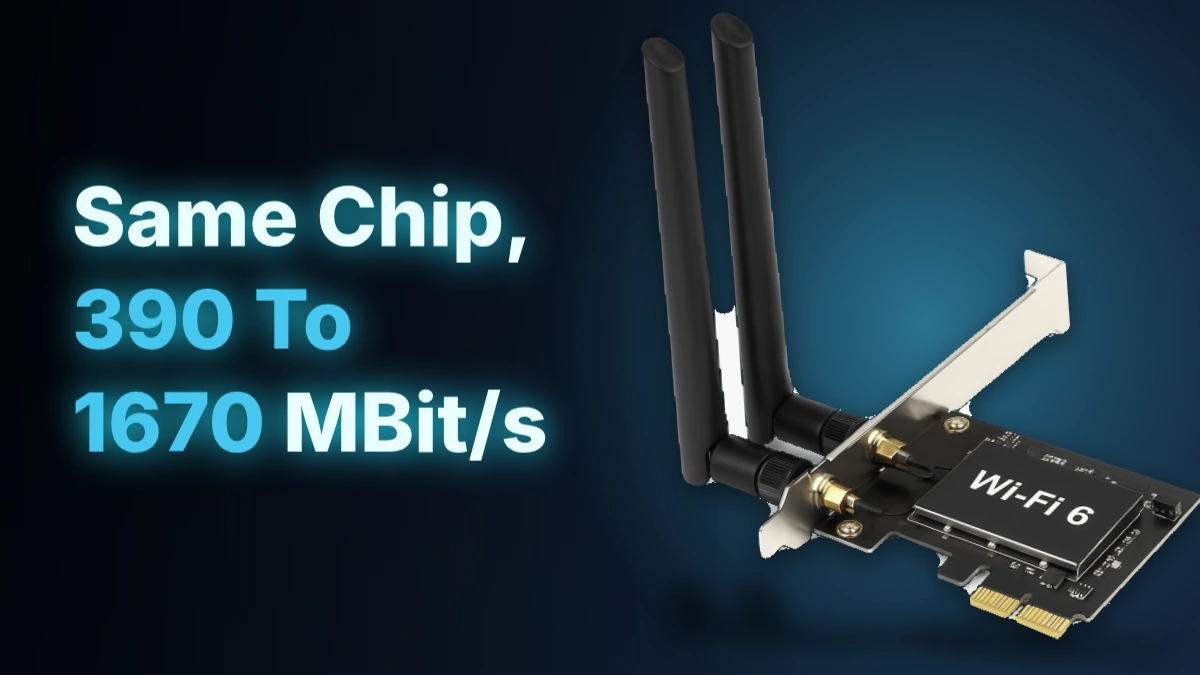
- 1Three AX201 units, identical chipset, spread from 390 to 1670 MBit/s on receive in Notebookcheck’s testing; the card name on the box tells you almost nothing about where in that range your build will land.
- 2In the 6-module AXE11000 shootout, the Intel Wi-Fi 6E AX211 hit 1848 MBit/s on receive against the MediaTek RZ608’s 430 MBit/s on the same test; every Intel part beat both MediaTek parts.
- 3Both MediaTek parts tested, the RZ608 at 430 MBit/s receive and 572 MBit/s transmit, landed under Notebookcheck’s own desktop class averages of 725 MBit/s receive and 1111 MBit/s transmit, and these are exactly the chips that ship free in cheap mini-PCs and bundled motherboards.
- 4The AX211 held a tight 1731 to 1888 MBit/s band across its runs while the AX200 swung between 748 and 1523; a card’s average hides how much it wobbles mid-session, and the narrow band matters as much as the headline number.
- 5TP-Link’s Archer T2E, Wi-Fi 5 with WPA3 security, sells for CDN$ 21.42 at Vuugo, cheaper than the older Wi-Fi 4 TL-WN881ND’s CDN$ 29.99 plus a matching CDN$ 29.99 shipping charge; the newer, faster, better-secured card is also the cheaper one.
- 6Every Wi-Fi 6 box promises 9.6 Gbps, but the best single result anywhere in the whole comparison was 1897 MBit/s, about a fifth of that claim and still below Wi-Fi 5’s own 3.5 Gbps paper rating.
- 76 GHz tops out around 2.4 Gbps against 2.4 GHz’s roughly 600 Mbps ceiling on Wi-Fi 6, but that speed only holds over 30 to 50 feet, so a card that settles there from across the room isn’t actually connected.
- 8Static SMPS cuts a 2×2 card’s theoretical rate from around 1200 Mbps to around 600 Mbps on a single stream to save power a desktop plugged into the wall never needed to save; check that Auto maps to Dynamic SMPS rather than Static.
- 9Heat, a bad driver and a Legacy CSM boot mode all produce the identical symptom, a connection that keeps dropping; a sub-$20 USB dongle works as a quick test for whether the card itself is the problem, but it won’t tell you which of the three actually caused it.
Intel AX210: The Full Settings Sheet
The AX210 is Intel’s Wi-Fi 6E chip, and it’s the only 6 GHz card in this comparison with every one of its Windows advanced properties spelled out rather than left to guesswork. Cyber Raiden’s sheet runs through all of them, and the first thing worth noticing is a contradiction sitting right at the top: Ultra High band, which is Intel’s name for 6 GHz, is set to Enabled, yet the preferred band is still set to Prefer 5 GHz band rather than 6 GHz. The card can reach the fastest band available and has been told not to reach for it first.
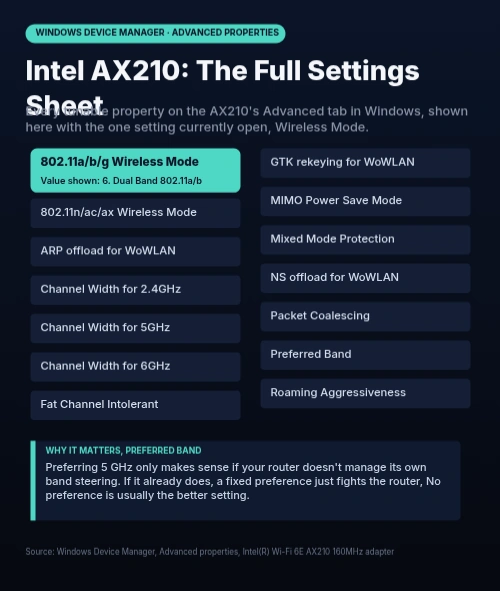
| 802.11a/b/g Wireless Mode | Dual band 802.11a/b/g |
| 802.11n/ac/ax Wireless Mode | 802.11ax |
| Channel width for 2.4GHz | Auto |
| Channel width for 5GHz | Auto |
| Channel width for 6GHz | Auto |
| Ultra High band (6 GHz) | Enabled |
| Preferred band | Prefer 5 GHz band |
| Transmit power | Medium-high |
| Roaming aggressiveness | Medium |
| Fat channel intolerant | Enabled |
| MIMO power save mode | Auto SMPS |
| Mixed mode protection | RTS/CTS Enabled |
| Throughput Booster | Disabled |
| U-APSD support | Disabled |
| ARP offloading for WoWLAN | Enabled |
| NS offloading for WoWLAN | Enabled |
| GTK rekeying for WoWLAN | Enabled |
| Packet Coalescing | Enabled |
| Sleep on WoWLAN disconnect | Enabled |
The two wireless mode dropdowns are set to the newest standard the AX210 supports: 802.11ax for the ac/ax mode, and Dual band 802.11a/b/g underneath it for backward compatibility. Channel width for 2.4, 5 and 6 GHz is left on Auto across the board, which hands the actual width decision to the router rather than to the card.
Transmit power is the first setting the sheet moves off the factory default. Highest is what the AX210 ships with, and the recommendation is Medium-high instead. Roaming aggressiveness stays right where it already sits, at Medium, which only goes looking for a stronger access point once the signal has dropped to somewhere around -65 to -70 dBm.
When to Skip the 5 GHz Preference
Prefer 5 GHz band only makes sense as a default for routers that don’t manage their own band steering. If the router already handles steering, overriding it with a fixed preference just puts the card and the router in a tug of war, and No preference is the better setting.
Fat channel intolerant being set to Enabled sits oddly next to leaving 2.4 GHz channel width on Auto. Enabled is a request to the router for narrower 20 MHz channels on that band, but it’s only a request: a router that has decided to run 40 MHz on 2.4 GHz will still push the client to 40 MHz regardless of what the card asked for.
MIMO power save mode and Mixed mode protection both trade a bit of speed for stability. Auto SMPS, which usually maps to Dynamic SMPS, lets the card drop active spatial streams during light work and bring them back when demand picks up. RTS/CTS Enabled makes the card reserve the channel with a handshake before every data transmission so older devices on the network stand clear of it; that handshake costs some throughput in overhead, but it’s what keeps a mixed network of old and new hardware from colliding.
Throughput Booster and U-APSD support are both Disabled. Throughput Booster would let the card hold the channel longer and burst packets to lift upload speed, at the cost of delaying everything else sharing that air. U-APSD, also called WMM-Power Save, is a power-saving scheme built for battery devices running VoIP and video calls, and a desktop PC has no use for it.
- ARP offloading for WoWLAN is Enabled, letting the card answer ARP requests on its own while the PC sleeps
- NS offloading for WoWLAN is Enabled, handling IPv6 Neighbor Solicitation traffic without waking the CPU
- GTK rekeying for WoWLAN is Enabled, keeping the encryption key current through sleep so the connection doesn’t need to renegotiate on wake
MediaTek MT7921: A Shorter Settings Sheet
The MT7921 is a Wi-Fi 6 class chipset, and its advanced properties sheet has four settings that matter more than the rest. The 802.11ax/ac/n/abg entry needs to sit on 802.11ax specifically, because that mode is the entire reason to buy a Wi-Fi 6 card rather than letting the driver fall back to something older under negotiation. Band Selection goes to Dual Band to keep both 2.4 and 5 GHz available rather than locking the card to one. Power saving is the setting people skip past: this is a desktop card plugged into a wall, there’s no battery for it to protect, and whatever the power-saving mode saves comes straight out of link stability. Miracast prefer band stays on Auto, since it only governs screen-casting and has nothing to do with the rest of the connection.
| 802.11ax/ac/n/abg | 802.11ax |
| Band Selection | Dual Band |
| Power saving | Disabled |
| Miracast prefer band | Auto |
| 2.4GHz channel bandwidth | Auto |
| 5GHz channel bandwidth | Auto |
| 6GHz channel bandwidth | Auto |
| Transmit Power Level | Medium |
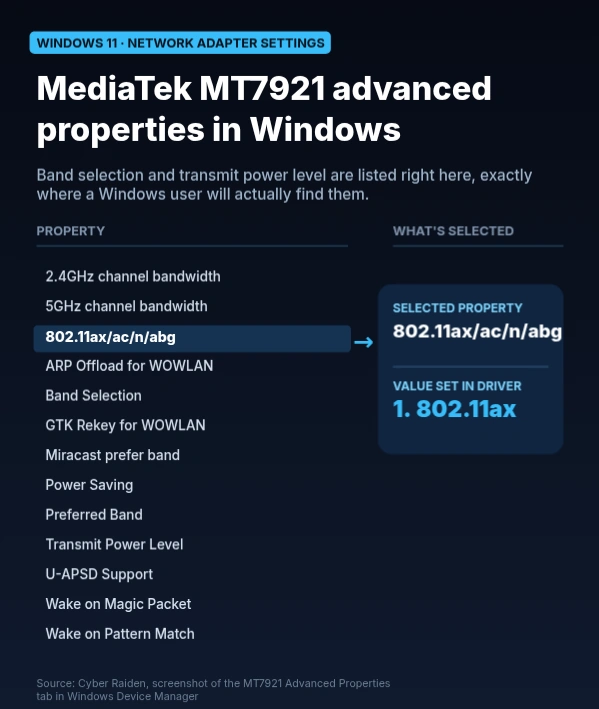
Channel bandwidth on 2.4, 5 and 6 GHz is the one place to leave the driver alone: Auto on all three lets the card follow whatever width the router negotiates instead of fighting it. Preferred Band is where MediaTek hands out more rope than Intel does, since it can be pinned outright to 2.4 GHz, 5 GHz or 6 GHz rather than just nudged toward one. Which of those three options even shows up depends on the card in the slot, because 6 GHz only appears on adapters built to use it. For a router that already handles band steering on its own, No preference is the setting to leave it on.
Transmit power and roaming aggressiveness are the two settings that answer to the house rather than the card. Medium transmit power covers most desktops outright, and Highest is there for the case where the router sits a long run away. Roaming aggressiveness answers a different question: how many access points the card has to choose between. A desktop talking to a single router that never moves does fine on Medium or Low, while a mesh or multi-AP home, where the card could sensibly hop to a closer node, wants Medium or High instead.
| Setting | Single-AP home | Mesh or multi-AP home |
|---|---|---|
| Roaming aggressiveness | Medium or Low | Medium or High |
| Transmit Power Level | Medium | Highest when the router is far away |
The MT7921 gets written off as the budget chip sitting next to Intel’s AX210, but the people actually running it under sustained load aren’t reporting trouble. One owner’s MT7921, paired with Bluetooth 5.3 on the same card, kept working after 1.2TB of downloads and counting.
now i am really grateful that my MediaTek MT7921 WiFi6 + BT 5.3 works like a charm even after i downloaded 1,2TB of data and forward !
Realtek 8852BE: The Shortest Sheet of the Three
Three sheets in, and the Realtek 8852BE’s is the shortest of the lot, but it still covers the ground a Wi-Fi 6 adapter needs to cover. Instead of one combined mode dropdown, the 8852BE splits wireless mode by band: 2.4G Wireless Mode sits on IEEE 802.11b/g/n/ax, and 5G Wireless mode sits on IEEE 802.11a/n/ac/ax, with ax present in both so neither band gets left on an older standard. Preferred Band is set to 5G first, Roaming aggressiveness sits at Medium-Low, and Beacon Interval holds at 100 — all sensible defaults for a desktop that has no access points to roam between in the first place.
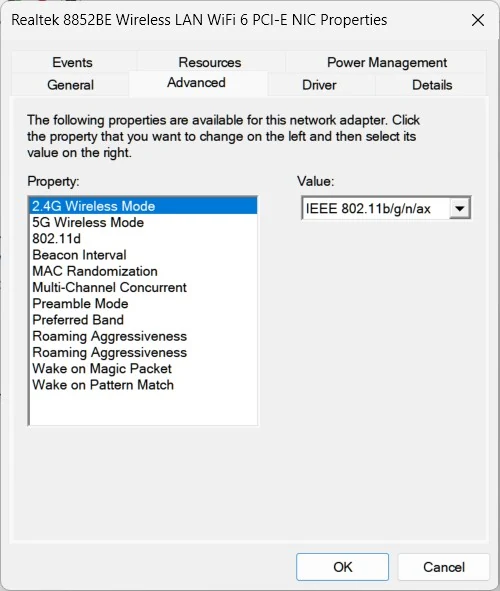
| System-on-chip | Realtek 8852BE |
| 2.4G Wireless Mode | IEEE 802.11b/g/n/ax |
| 5G Wireless mode | IEEE 802.11a/n/ac/ax |
| Preferred Band | 5G first |
| Roaming aggressiveness | Medium-Low |
| Beacon Interval | 100 |
| MAC randomization | Enabled |
| Preamble Mode | Short & Long |
| Multi-Channel Concurrent | Disabled |
Three more entries round out the sheet, and none of them appear in quite this form on the other 2 cards. MAC randomization is Enabled, Preamble Mode accepts both Short & Long, and Multi-Channel Concurrent sits Disabled. That last one is worth leaving alone unless a specific use calls for it: Multi-Channel Concurrent is the one feature on this sheet the Intel and MediaTek cards don’t expose at all, and it’s not free.
Multi-Channel Concurrent, Also Called AP + Station
Multi-Channel Concurrent runs two virtual network interfaces, wlan0 and wlan1, on the same piece of radio hardware, which lets the 8852BE act as a Wi-Fi client and an access point at the same time. The constraint that makes it work is a hard one: the 2 channels have to sit on different frequency bands, so 2.4 GHz handling the internet connection while 5 GHz carries a peer-to-peer link is a valid pairing, but two slices of the same band are not.
- STA + STA connects the card to two different access points at once
- STA + AP makes the card a client and a hotspot simultaneously
- AP + AP broadcasts two separate SSIDs on 2 different channels
- Repeater mode joins an existing network on one channel and rebroadcasts it on another, the configuration most desktop owners reaching for MCC would actually want
- Wi-Fi Direct or P2P can run alongside a normal internet connection
- Mesh networking and simultaneous dual-band operation are both built on the same mechanism
What Turning MCC On Costs
One radio doing two jobs means that radio’s hardware resources get split between them, and that split can cut throughput on both the client connection and whatever the card is broadcasting. The hit gets worse on a radio that isn’t optimized for running concurrent tasks, and worse again where signal strength is already weak. If MCC starts misbehaving, the first things to check are the latest Realtek or vendor drivers and the antenna connections, before assuming the feature itself is at fault.
802.11d and Regulatory Domain Information
802.11d is the toggle that decides whether the card trusts the network it’s connecting to for regulatory information. With it enabled, the 8852BE reads the Country Information Element out of the access point’s beacons and probe responses, which carries the country code, the list of allowed channels, and the maximum transmit power permitted there, and configures itself to match. With it disabled, the card ignores all of that and falls back to default or manually configured settings instead.
The Catch With Trusting the Router
802.11d only helps if the access point is telling the truth. A router broadcasting wrong country information, or none at all, forces the card into conservative settings: a limited channel list, reduced transmit power, or both, and that dependency on the router’s broadcast is itself a cost to performance. Some older access points never implemented 802.11d in the first place, and connecting to one of those leaves the 8852BE on its defaults regardless of how the toggle is set.
Intel AX201 Inside the Asus ExpertCenter D9 SFF
Open the Asus ExpertCenter D9 SFF and the Wi-Fi card inside is Intel’s AX201, a Wi-Fi 6 part that covers every standard from a/b/g/h/n through ac up to ax, with Bluetooth 5.0 riding on the same module. What makes this machine worth a close look is what sits right next to it: an Intel I219-LM gigabit ethernet port, rated at 10/100/1000 MBit/s. That’s the fallback built into the box, and it matters once the wireless numbers show up.
Notebookcheck ran the AX201 against an AXE11000 router on 6 GHz and got 919 MBit/s receive, ranging 875 to 928, and 981 MBit/s transmit, ranging 965 to 998. Both directions land just under 1 Gbit/s, which puts the wireless card within shouting distance of the gigabit ethernet sitting beside it in the same case, and Notebookcheck’s own verdict on the AX201 was that this was only the good middle of the field against everything else on file, not a standout result.
Intel AX201 in the Asus ExpertCenter D9 SFF — iperf3 on AXE11000 6GHz
The more telling number sits a layer below the single test: across three AX201 units, Notebookcheck’s receive average comes out at 993 MBit/s and the transmit average lands at the same 993 MBit/s, but the receive spread across those three units runs from 390 up to 1670 MBit/s, a gap of more than four times between the worst and best result from the identical card. The Asus unit’s 919 MBit/s sat a little under that 993 average on receive, and its 981 MBit/s sat a hair under it on transmit, which places this particular machine as unremarkable even by the standard of its own chipset.
The Card Name Tells You Almost Nothing
Three AX201 units, same chipset, same standard, and a receive range running from 390 to 1670 MBit/s, with the Asus ExpertCenter D9 SFF landing at 919. Buy on the card name alone and you’re buying a number that could land anywhere in that range. Placement, antenna design and the host system around the chip decide the outcome far more than the AX201 label on the box does.
| Wi-Fi adapter | Intel Wi-Fi 6 AX201 |
| Standards supported | a/b/g/h/n = Wi-Fi 4 / ac = Wi-Fi 5 / ax = Wi-Fi 6 |
| Bluetooth | Bluetooth 5.0 |
| Wired networking | Intel Ethernet Connection I219-LM (10/100/1000MBit/s) |
| iperf3 receive (AXE11000 6GHz) | 919 (875min – 928max) MBit/s |
| iperf3 transmit (AXE11000 6GHz) | 981 (965min – 998max) MBit/s |
| AX201 average receive (n=3) | 993 MBit/s (390 – 1670) |
| AX201 average transmit (n=3) | 993 MBit/s (745 – 1252) |
| Host system | Asus ExpertCenter D9 SFF D900SC |
6 Modules, One 6 GHz Router
Notebookcheck put 6 modules through the same iperf3 3.1.3 run against one AXE11000 router on 6 GHz, which makes this the only place in the whole comparison where every card faced identical conditions. The Intel Wi-Fi 6E AX211 hit 1848 MBit/s on receive; the MediaTek RZ608 managed 430 MBit/s on the same test, and that gap is the more than four-times spread the test as a whole produces. Measured against the Intel Wi-Fi 6 AX201’s receive number, the AX211 came in 101 percent higher, while the RZ608 landed 53 percent lower. Every Intel part Notebookcheck measured beat both MediaTek parts, which means the chip inside the machine, not the router sitting across the room, is what sets the ceiling on this link.
iperf3 receive, AXE11000 6GHz
iperf3 transmit, AXE11000 6GHz
| Adapter | Receive (MBit/s) | Transmit (MBit/s) |
|---|---|---|
| Intel Wi-Fi 6E AX211 | 1848 (1731min – 1888max) | 1851 (1799min – 1897max) |
| Killer Wi-Fi 6 AX1650x (200NGW) | 1480 (1212min – 1519max) | 1669 (1609min – 1719max) |
| Intel Wi-Fi 6 AX200 | 1455 (748min – 1523max) | 1696 (1619min – 1764max) |
| Intel Wi-Fi 6 AX201 | 919 (875min – 928max) | 981 (965min – 998max) |
| MediaTek MT7921 | 776 (482min – 881max) | 866 (502min – 950max) |
| MediaTek RZ608 | 430 (379min – 451max) | 572 (532min – 680max) |
| Desktop class average | 725 | 1111 |
The averages alone hide how steady each card actually is. The AX200’s 1455 MBit/s receive average is built out of runs that dropped as low as 748 MBit/s and climbed as high as 1523, and the MT7921 swung between 482 and 881 across its runs, so a card can post a respectable average and still fall hard mid-session. The AX211 and AX201 did the opposite: the AX211 never left a 1731 to 1888 MBit/s band, and the AX201 held between 875 and 928. For anyone who cares less about the peak number and more about a link that doesn’t wobble while a file is transferring, that narrow band matters as much as the average sitting above it.
Desktop Class Average as a Yardstick
Notebookcheck’s desktop class average gives a yardstick to measure the rest against: 725 MBit/s on receive, 1111 MBit/s on transmit. The MediaTek RZ608 fell under that receive average at 430 MBit/s, and both MediaTek parts landed well under the transmit average, the RZ608 at 572 and the MT7921 at 866. That’s worth flagging because plenty of cheap mini-PCs and bundled motherboard cards ship with exactly these chips.
TP-Link Archer T2E and TL-WN881ND
Both of these TP-Link cards slot into the same PCIe x1 interface, which is the only thing keeping them in the same conversation. The Archer T2E is a dual-band Wi-Fi 5 card rated AC600, with a high-gain antenna included in the box. The TL-WN881ND covers one standard only, Wi-Fi 4 at N300, with no 5 GHz band to fall back on. Swap one for the other and nothing else in the build needs to change.
| Spec | TP-Link Archer T2E | TP-Link TL-WN881ND |
|---|---|---|
| Protocol | Wi-Fi 5 | Wi-Fi 4 |
| Interface | PCIe x1 | PCIe x1 |
| Release Date | December 2021 | January 2011 |
| Security | WEP, WPA/WPA2/WPA3, WPA-PSK/WPA2-PSK/WPA3-SAE | 64/128 WEP, WPA/WPA2/WPA-PSK/WPA2-PSK(TKIP/AES), supports IEEE 802.1X |
| Price | CDN$ 21.42 at Vuugo, CDN$ 24.99 at Amazon.ca | CDN$ 29.99 plus CDN$ 29.99 shipping |
Pangoly’s listing history puts the TL-WN881ND at January 2011 and the Archer T2E at December 2021, a gap of 11 years. The WN881ND belongs to the Wi-Fi 4 generation and it’s still for sale today, sitting across the same comparison table from a card released over a decade later.
Security is where the 11 years show up hardest. The Archer T2E’s listing covers WPA3 and WPA3-SAE, the current standard for a home network, while the WN881ND’s stops at WPA2-PSK with TKIP/AES, a full generation behind. The older card does list IEEE 802.1X, which is enterprise authentication against a separate server rather than anything that helps a home encryption setup, so it doesn’t close the WPA3 gap.
The pricing runs backward from what the spec sheet suggests it should. The newer, faster, better-secured Archer T2E sells for CDN$ 21.42 at Vuugo and CDN$ 24.99 on Amazon.ca, while the WN881ND lists at CDN$ 29.99 before a matching CDN$ 29.99 shipping charge gets added on top. Pangoly’s own comparison puts the T2E 29 percent cheaper, a CDN$ 8.57 saving, and that figure is worked out before anyone adds the WN881ND’s shipping into the total.
Pros
- Wi-Fi 5, AC600, dual-band against the WN881ND’s single-band Wi-Fi 4
- Lists WPA3 and WPA3-SAE security support
- Ships with a high-gain antenna
- 29 percent cheaper, a CDN$ 8.57 saving against the WN881ND
Cons
- Wi-Fi 4 only, capped at N300
- Security tops out at WPA2-PSK with TKIP/AES
- Adds CDN$ 29.99 shipping on top of a CDN$ 29.99 price – though it does list IEEE 802.1X support where the Archer T2E’s listing doesn’t
Three Reasons Versus Zero
Pangoly’s own comparison page lists three reasons to choose the Archer T2E and none at all for the WN881ND. Comparison pages like this one almost always find something to say for both sides; this one doesn’t bother.
Channel Width: 2.4, 5 and 6 GHz Compared
Channel width is the one setting that means something completely different depending on which of the three bands a card is using it on, and 2.4 GHz is where the arithmetic makes the decision for you. The whole band holds only 83.5 MHz, and once you carve that into non-overlapping 20 MHz channels you get exactly three: 1, 6 and 11. Bond two of them together for a 40 MHz channel and you’re left with just one usable 40 MHz channel in the entire band, which is why 20 MHz has stayed the recommended width here since well before Wi-Fi 6 showed up. Wi-Fi 6 didn’t add any new width options on 2.4 GHz either; whatever it gained on this band, it gained through efficiency tricks like OFDMA, not through giving you more room to spread a signal across.
| Band | Widths available | Non-overlapping 160 MHz channels | DFS required |
|---|---|---|---|
| 2.4 GHz | 20, 40 MHz | None | No |
| 5 GHz | 20, 40, 80, 160 MHz | 2 | Yes, on some channels |
| 6 GHz | 20, 80, 160 MHz | 7 | No |
5 GHz is where width actually becomes a choice worth thinking about. You can run 20, 40, 80 or 160 MHz, and going from 80 to 160 roughly doubles your throughput, which sounds like an easy call until you look at what it costs: wider channels mean fewer non-overlapping ones to go around, and in a crowded building that turns into interference you’re causing for yourself. Some of the channels wide enough to matter also require DFS to get out of radar’s way, and 160 MHz specifically is restricted outright in some countries. That combination is why 80 MHz is the sensible default for anything urban or enterprise, and why 160 MHz is a setting to reach for only when you know you’ve got the room for it.
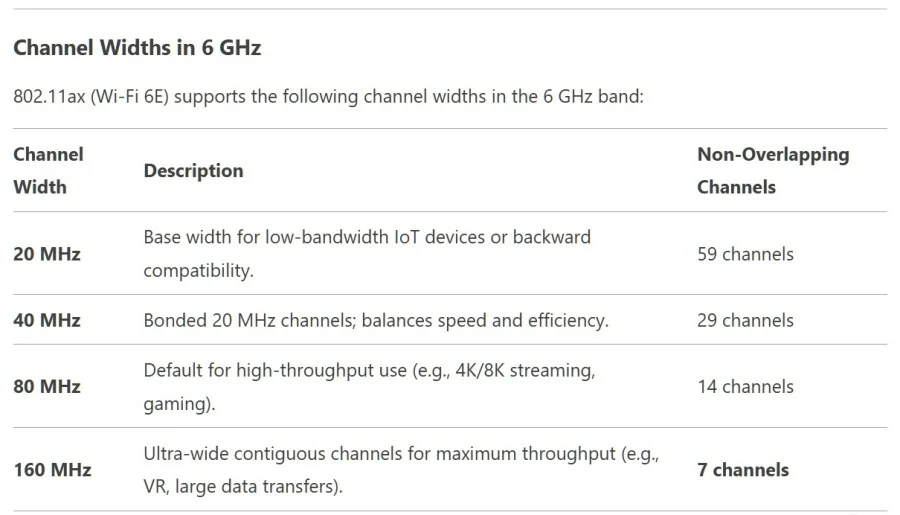
This is the number that justifies buying a 6E card over a plain Wi-Fi 6 one: 6 GHz runs from 5925 to 7125 MHz, 1200 MHz of brand-new spectrum, and it carves into 59 non-overlapping 20 MHz channels and 7 non-overlapping 160 MHz channels. Set that against the 2 non-overlapping 160 MHz channels available on 5 GHz and the gap is obvious without needing a ratio spelled out. Just as important, none of it requires DFS, so the widest setting on 6 GHz is something you can actually leave switched on rather than a mode that keeps getting interrupted by radar checks.
- Low-Power Indoor mode on 6 GHz caps transmit power at 30 dBm EIRP, which is the regime almost every home router and client card runs under
- Standard Power mode allows more range and output, but only after AFC, Automated Frequency Coordination, signs off on the specific location and channel
- AFC exists to keep 6 GHz clear of the incumbents already using that spectrum, like satellite links, so Standard Power can’t just be switched on anywhere
Fat Channel Intolerant Isn’t a Lock
The Fat Channel Intolerant toggle on 2.4 GHz looks like a hard setting, but it’s really just a request to the access point for 20 MHz. If the router’s 2.4 GHz width is set to auto and it decides to run 40 MHz anyway, the client follows it there regardless of what the toggle says.
Transmit Power and Roaming Aggressiveness
Two settings in the same advanced properties tab come with actual dBm numbers attached, which is what makes them worth touching instead of guessing. Transmit power should sit at the lowest level that still holds a clean link, because a weaker signal means less of a fight with the networks sitting next to yours. That trade only pays off somewhere crowded: a dense apartment block or a busy office full of overlapping routers is where dialling the power down actually lets more devices coexist in the same space, while a signal pushed out further than it needs to be just collides with everyone else’s.
- Lowest: minimum transmit power, shrinks coverage and cuts clashes in dense buildings
- Medium-low: sits between minimum and medium power
- Medium: fixed by whatever your country’s radio regulations allow
- Medium-high: sits between medium and maximum power
- Highest: the adapter’s default, maximum transmit power, suited to rural areas and large open spaces with few competing networks
Roaming Aggressiveness and Its Scan Threshold
Roaming aggressiveness decides how weak the current connection has to get before the adapter bothers looking for a better access point. It isn’t watching one number: the card tracks RSSI and the signal-to-noise ratio of the AP it’s already on, and a switch gets triggered once RSSI drops far enough or packet loss crosses its own threshold.
| Roaming aggressiveness | Scan threshold | Behaviour |
|---|---|---|
| Minimum | below -80 dBm | Holds the current AP until the signal is extremely weak |
| Low | around -75 dBm | Scans when the signal drops moderately; suits a single-AP setup |
| Medium | -65 to -70 dBm | Often the default; works well in homes and small offices |
| High | -50 to -60 dBm | Scans while the signal is still strong; built for many-AP sites |
| Maximum | constant | Always hunting for the best signal |
Where this setting turns into ping spikes
High starts scanning for a better AP while the signal is still strong, at -50 to -60 dBm, and that scanning is exactly what shows up as ping spikes and dropped connections in games and other real-time applications. Maximum is worse again in a house with one access point: the card never stops hunting for something better, and in a single-AP setup there’s nothing better to find, so it just destabilises a connection that was already fine.
Pros
- Higher aggressiveness keeps the link on a strong signal and lowers latency
- Medium or High suits a setup where you actually roam between multiple APs
Cons
- Higher aggressiveness can cause ping-pong roaming between overlapping APs
- Lower aggressiveness risks sticking to a weak AP and degrading performance
- Lower aggressiveness does minimise transient disconnections, which is why Medium or Low suits a non-roaming, single-AP home
- 802.11k: neighbour reports help the adapter identify which nearby APs are actually worth switching to
- 802.11v: lets the access point itself suggest when a client should roam, rather than leaving the decision entirely to the adapter
- 802.11r: fast transition cuts the reauthentication time during a switch
- All three only help if the access points support them and their coverage overlaps with planned, non-conflicting channels
Before touching any of these thresholds, it’s worth ruling out a simpler explanation. Builders often blame the adapter’s settings the moment link quality drops, but a new component added to the case or a new physical obstruction between the PC and the router can produce the exact same symptoms.
Have you installed something into your PC recently? Have you created some physical barrier between the PC and wifi router?
Sleep and offload toggles in the Advanced tab
A block of settings in that same Advanced tab decides what happens while the PC is asleep but still supposed to look alive on the network, and two of them do the same job on two different protocols. ARP offloading answers ARP requests on IPv4 while the system sleeps, with the adapter replying on its own so the CPU never has to wake up for it. NS offloading does the equivalent job on IPv6, answering Neighbor Solicitation requests in the card’s place, and turning it off has a specific consequence: IPv6 networks drop devices that stop answering from the neighbour cache, so a sleeping machine with NS offload disabled looks offline to everything else on the network, remote access included.
GTK rekeying is the third offload in that group, and it costs a brief wake-up rather than nothing. The group key encrypts multicast and broadcast traffic, and the router rotates it on a schedule whether or not a client is asleep to hear about it. Without GTK rekeying, a sleeping client misses the new key, can’t decrypt the next round of broadcasts, and the access point drops it rather than keep talking to a card that’s fallen out of sync.
Packet coalescing is the one setting in this group a gamer will actually feel. The card batches incoming packets and raises a single CPU interrupt for the whole batch instead of one interrupt per packet, which is exactly what lowers CPU load and saves power, but it does it by holding packets back for a delay of typically milliseconds. For most traffic that delay is invisible. For competitive gaming or VoIP, where every one of those milliseconds shows up as input lag or a stutter in the call, it’s the one case worth switching coalescing off for.
When to turn coalescing off
Leave packet coalescing on for everything else. The few milliseconds it buffers before raising an interrupt only cost something in competitive gaming or voice calls, and that’s the one situation worth switching it off for.
U-APSD, also labelled WMM-Power Save in some drivers, lets the card sleep between bursts of small periodic traffic like a voice call rather than staying fully awake for it. Instead of the access point delivering buffered data on a fixed schedule, the client sends a trigger frame when it’s ready, and the AP hands the buffered data over immediately. None of that works unless the router supports U-APSD too, so turning it on at the card does nothing on its own.
Static SMPS is the setting that costs the most throughput of anything in this group. It pins the radio to a single spatial stream to save power, and on a 2×2 card running at 80 MHz that drops the theoretical rate from around 1200 Mbps down to around 600 Mbps on a single stream, per Cyber Raiden’s figures: half the rate, gone, for a power saving that makes sense on a laptop running off battery and no sense at all on a desktop plugged into the wall. Dynamic SMPS adds streams back as demand rises instead of holding the radio down permanently, and Auto usually maps to Dynamic rather than Static, which is the setting worth confirming rather than assuming.
2×2 adapter at 80 MHz: theoretical rate by stream count
Three more toggles govern what wakes the machine up and what it does next. A magic packet is a narrowly defined trigger: six bytes of FF:FF:FF:FF:FF:FF followed by the card’s own MAC address repeated 16 times, and nothing else wakes the card under that setting. Wake on pattern match is the broader version, firing on things like an incoming Remote Desktop connection on port 3389 or an ARP request for the device’s IP, which covers far more real-world wake scenarios than a magic packet alone. Sleep on WoWLAN disconnect decides what happens after any of that: enabled, the machine drops straight back into deep sleep the moment the link goes, rather than sitting half-awake waiting on nothing.
- ARP offloading: answers ARP requests on IPv4 while the system sleeps
- NS offloading: handles IPv6 Neighbor Solicitation during sleep
- GTK rekeying: wakes briefly to refresh the group key
- Magic packet: wakes on six bytes of FF:FF:FF:FF:FF:FF followed by the card’s MAC address repeated 16 times
- Wake on pattern match: can fire on an RDP connection over port 3389
- Sleep on WoWLAN disconnect: sends the machine straight back under once the link drops
Throughput Booster works in the opposite direction from everything above it: it doesn’t save power, it grabs airtime. Once enough data is buffered for an upload, the card holds the channel and fires off several packets in a row instead of releasing it between each one, cutting the waiting and contending overhead that normally sits between packets. The catch is that it only improves upload speed, never download, and on a busy network the airtime it’s holding onto is airtime every other device on that network isn’t getting.
Pros
- Faster uploads from this machine
- Less waiting and contending overhead between packets
- Works best on networks that aren’t crowded
Cons
- No benefit to download speed
- Can delay every other device sharing the same network
- The channel time it holds is time it’s taking from someone else
Power-saving settings are the usual suspect when Wi-Fi reports cutting out with no obvious cause, and the aggressive end of these toggles can drop the link entirely on a battery-powered machine before the hardware itself is even in question.
That card is notorious for exactly this, especially on battery when the power saving kicks in and cuts it off.
Heatsinks, Drivers and Boot Mode
A Wi-Fi card that keeps dropping its connection is rarely the chip’s fault at all, and the three usual culprits never show up on any spec sheet. Most PCIe Wi-Fi cards cool themselves with a passive aluminium or copper heatsink, fins and all, with no fan anywhere on the board, which means cooling depends entirely on whatever air the case happens to be moving past those fins. On some cards the heatsink isn’t a separate part at all; it’s built into the antenna base or the cover shield, so one piece of metal does double duty as both EMI shield and thermal path.
Push heavy throughput through that card and the processing load climbs together with the heat, and the card’s own defence against overheating is to throttle itself, lowering its operating frequency rather than let temperatures keep climbing. Beyond throttling, the heat shows up directly as symptoms that read nothing like a cooling problem: random disconnections, unreliable performance, and a higher rate of transmission errors, which is exactly the complaint people bring to a forum convinced the card itself is defective. Keep that heat going long enough and it also shortens the lifespan of whatever components sit inside the enclosure.
- Compact and nano sticks mostly ship with no heatsink at all, built around low-power chipsets meant for short-range, low-throughput use, where limited internal space leaves no room for a sink and cost, size and power efficiency outrank thermal performance
- Heavy-duty USB adapters sold for longer sessions use the integrated metal casing itself as a passive heatsink
- Some expose a metal plate wired directly to the main chip
- Others pack thermal pads inside the enclosure to spread heat across the shell
Legacy CSM Mode and Card Stability
Booting Windows in Legacy CSM mode forces it to talk to hardware through interrupt-driven I/O instead of the standardised interfaces UEFI provides, and modern Wi-Fi drivers are written and tested for that UEFI path, not the older one. The emulated BIOS underneath CSM also hands Windows a thinner set of ACPI tables, which disrupts how the card gets powered and configured, and the card can end up improperly initialised before Windows ever starts looking for a network. Resource allocation, memory addresses and IRQs included, is less optimal under Legacy mode too, and a device that depends on precise timing shows all of this as intermittent connectivity, crashes, or a driver that simply never loads. Microsoft recommends UEFI mode for any hardware that supports it, and a modern Wi-Fi adapter is designed with exactly that assumption built in.
- Disable CSM in the UEFI BIOS
- Set opROM policies to UEFI Only
- Configure the UEFI BIOS to boot Windows in UEFI mode
Drivers: Newest Isn’t Always Working
The latest official driver isn’t a guarantee either, it can still ship a bug that causes connectivity faults of its own, and the fix there is rolling back to the previous version rather than chasing a newer one that doesn’t exist yet. The other half of the driver problem is which driver is actually installed: a generic Microsoft-supplied driver standing in for the OEM build causes its own trouble, and a Windows 10 update can leave an older driver mismatched with the version of Windows now running it. Anyone who knows the chipset inside the card rather than the card’s brand name can look it up directly at station-drivers.com, which lists drivers by chipset name.
Heat, driver state and boot mode all produce the identical symptom from the user’s chair: a connection that keeps dropping. Nothing on a spec sheet tells the three apart, which is why the first move people reach for is cheaper than diagnosing any of them.
It can be a number of things. Ranging from bad wi-fi card to needing to upgrade the driver. A quick inexpensive way to check and temporary fix is to buy a USB dongle under $20.00.
A sub-$20 USB dongle works as both a quick test and a stopgap: if the dongle holds a connection the original card can’t, the card is the problem, and the dongle buys time while a real fix gets sorted out. What it doesn’t do is tell you which of the three causes was at fault, and it brings its own blind spot along with it, since the cheapest dongles ship with no cooling of their own.
That advice gets pushback for a reason.
These ones aren’t either of them
Before Blaming the Card
Install the latest stable driver from the manufacturer’s own website rather than whatever Windows Update offers, keep the adapter clear of obstructions, orient the antenna properly, and deal with any overheating issue first. Replacing hardware before checking any of that is the most common mistake in the whole thread.
The Two Settings That Pick Your Frequency
Dual Band isn’t a coin flip between frequencies, it’s a ladder: the adapter tries 6 GHz first, falls back to 5 GHz if that fails, and only lands on 2.4 GHz as a last resort. Which rung it ends up on decides the ceiling on everything else, because 2.4 GHz on Wi-Fi 6 tops out near 600 Mbps no matter how good the rest of the setup is, while 6 GHz can reach up to about 2.4 Gbps. That headline number comes with a catch the ladder doesn’t account for: 6 GHz only holds a link over 30 to 50 feet, so the fastest rung is also the shortest one, and a card that quietly settles on it from the next room isn’t connecting at all.
| Band | Peak speed on Wi-Fi 6 | Practical range |
|---|---|---|
| 2.4 GHz | ~600 Mbps | Longest; penetrates walls best |
| 5 GHz | Higher data rates than 2.4 GHz | Works within about 50 feet of the router |
| 6 GHz | Up to ~2.4 Gbps | 30–50 feet |
- 2.4G Only earns its keep in basements, backyards and anywhere legacy IoT gear still needs to connect, places where range matters more than speed
- 5G Only is the right call within roughly 50 feet of the router, where the extra throughput over 2.4 GHz doesn’t cost a stable link
- Dual Band sounds like the safe default, but it can still misjudge signal strength and drop the connection to 2.4 GHz when 5 GHz was still perfectly viable
- Switching bands isn’t free even when it picks correctly: the act of hopping between them can itself throw latency spikes
Before you force 6 GHz
Setting Band Selection to 6G Only is a bet most networks still lose: as of April 2025, a router that doesn’t support Wi-Fi 6E or Wi-Fi 7 won’t offer a 6 GHz network at all, and the card just sits with nothing to connect to. MediaTek’s early 6 GHz driver support is also still maturing, so even on a compatible router this is the mode most likely to produce bugs. And when it does connect cleanly, the same 30 to 50 foot range from the table above still applies, so the gain only shows up for whoever’s sitting close to the router.
Where the router already does band steering on its own, Preferred Band is best left on No Preference. The router is already watching signal strength and traffic load on both bands and moving the card accordingly, and overriding that by hand usually makes the connection less efficient, not more, by locking the card onto a band the router would have steered it off anyway. Treat Preferred Band as a troubleshooting lever for when something’s visibly wrong, not a setting to tune by default.
The simplest version of this entire fix skips the settings menu altogether: push the connection onto 5 GHz by hand and see what changes. That’s exactly the advice one reader gave another on r/pchelp.
Try going into your WiFi settings, and into the network settings of your WiFi network, then switch auto or 2.5ghz to 5ghz, lmk how it goes
The Box Number Versus the Bench Number
Every Wi-Fi 6 box promises 9.6 Gbps, a figure that assumes 8 spatial streams running on 160 MHz channels at once, a configuration no consumer card in this comparison ships with. The best single result anywhere in the whole iperf3 table, across every card and every band tested, was 1897 MBit/s, which is roughly a fifth of the claimed peak and sits squarely in the 1-2 Gbps range real Wi-Fi 6 hardware actually delivers. Wi-Fi 5’s own paper rating was 3.5 Gbps, lower than Wi-Fi 6’s 9.6 Gbps claim, but still higher than the best Wi-Fi 6 result measured here. A buyer reading only the box has no way to know that the generation they’re paying extra for hasn’t yet beaten, in practice, the paper number of the generation it replaced.
Theoretical peak rates on paper
The 9.6 Gbps figure isn’t invented, it’s just built from pieces a desktop setup rarely assembles. Wi-Fi 6 doubles MU-MIMO from Wi-Fi 5’s 4×4 to 8×8 and adds uplink MU-MIMO on top of downlink, which is real capacity that a home network with one router and a handful of devices has little reason to fill. The other piece of the claim, 1024-QAM, lifts peak rates by up to 25 percent over the previous modulation scheme, but only holds at close range with a strong, clean signal. Move the card across the room from the router, which is where most desktop towers sit, and that 25 percent gain is the first thing to disappear.
$20 buys no Wi-Fi 6 at all
Below a certain price the comparison isn’t fast Wi-Fi 6 against slow Wi-Fi 6, it’s Wi-Fi 6 against none. TP-Link’s Archer T2E, a Wi-Fi 5 PCIe x1 card, lists at Vuugo for CDN$ 21.42. That’s what $20 gets a desktop builder today, and it’s a generation behind before the box number even enters the conversation.
What a buyer controls after the purchase matters more than which number was on the box, because Cyber Raiden’s testing found modern chipsets hold up fine under real work once four things are handled: a stable driver straight from the manufacturer, a clear line of sight with no obstructions in the way, antennas oriented properly, and any overheating dealt with before the card gets blamed for a problem the heatsink caused. The fifth piece is matching the adapter’s settings to what the router can actually do, which is the same lesson the 9.6 Gbps claim teaches in reverse: know the real ceiling on both ends before expecting the number on the box to show up on a speed test.
- Install the latest stable driver for the adapter
- Keep the adapter clear of obstructions
- Orient the adapter antennas properly
- Take care of any overheating issue
- Match adapter settings to the access point’s capability