
Key Takeaways
- 1Buying an OLED means buying into desktop habits, not just a gaming panel: the MSI MPG 272URX QD-OLED at $1099 is priced like a sensible purchase now, but it still carries the same burn-in exposure that has owners running black desktops and auto-hidden taskbars to protect it.
- 227 inches at 1440p needs no Windows scaling and still looks sharp pushed to 125%, which is why it keeps beating 4K at the same size for most buyers.
- 3Don’t chase 360Hz or 540Hz unless your CPU can feed it. TechSpot’s Ryzen 7 3800X couldn’t clear 100fps in Battlefield 6 regardless of resolution, which makes a high-refresh panel pointless on that hardware no matter what the box promises.
- 4If you run VRR, layer V-Sync and a frame cap on top rather than a manual limiter plus NVIDIA Reflex together: stacking two caps, as the article found, adds frametime noise instead of removing it.
OLED vs IPS vs VA: the 2026 shortlist
Start with the physical fact that decides everything else about OLED: every pixel makes its own light, and a pixel that’s off makes none of it. There’s no backlight sitting behind the panel waiting to leak through a supposedly black pixel, which is why OLED’s contrast ratio isn’t a measured number at all – it’s infinite, because zero divided into anything is zero. The same self-emissive design is what lets OLED pixels switch states in under 0.1ms, the fastest transition of any panel technology on the market. Nothing else here is close.
IPS earns its seat at the table on viewing angles: 178 degrees horizontal and vertical, with minimal colour shift no matter where you sit, which is the reason it’s still the panel people put in front of a second person or a shared desk. What it gives up for that is contrast – IPS carries the lowest contrast ratio of the three, and in a dark room the blacks read as grey rather than black, with glow visible as backlight bleed in the corners. The complaint that IPS is slow doesn’t hold up anymore: Fast IPS variants, including Nano IPS and IPS Black, are now rated at or under 1ms, and IPS Black pushes black levels to roughly twice the depth of a standard IPS panel. The viewing-angle advantage hasn’t moved; the two weaknesses that used to come with it have.
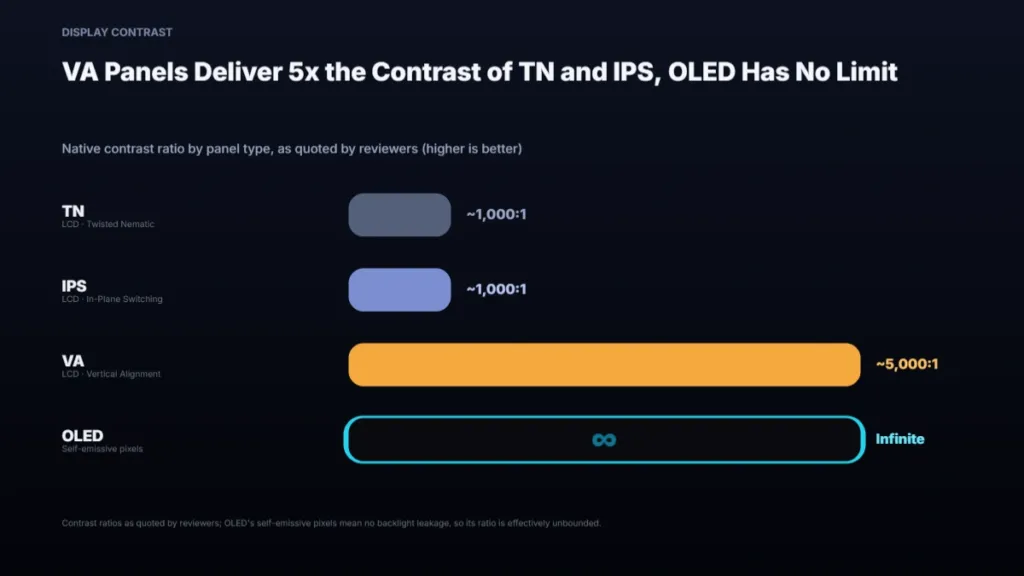
VA’s whole case is contrast: 3,000:1 up to 6,000:1 against roughly 1,000:1 on IPS and TN, and that gap is why a dark cave or a night scene looks like it has actual depth instead of a backlit grey rectangle. The trade shows up the moment that scene changes – VA panels smear on dark-to-light transitions, and that smear turns into visible ghosting in fast shooters and racing games where the screen is constantly flipping between dark and bright. It’s also the technology that suits a curved monitor best, for reasons that have nothing to do with pixel response and everything to do with how the panel bends.
| Feature | OLED | IPS | VA | TN |
|---|---|---|---|---|
| Response Time | <0.1ms | 1–3ms | 3–8ms | 0.5–1ms |
| Contrast Ratio | Infinite | ~1,000:1 | 3,000–6,000:1 | ~1,000:1 |
| Viewing Angles | Excellent | Excellent | Good | Poor |
| Black Level | Perfect | Moderate | Good | Poor |
| Burn-in Risk | Present | None | None | None |
| Max Refresh Rate | 240–480Hz | 360Hz+ | 240Hz | 360Hz+ |
| Best Use Case | Premium all-purpose | All-rounder | Immersive single-player | Competitive FPS |
VA response time is where the reviewers stop agreeing, and the spread matters. BenQ quotes 2-3ms and calls that nearly as quick as TN. KTC puts the same panel type at 4-8ms. Newegg lands at 3-8ms and files VA behind IPS, which it rates at 1-3ms. A 2ms VA panel and an 8ms VA panel are not the same purchase – one is competitive for fast games, the other is the panel that ghosts in a shooter – and a spread that wide means the number on a VA spec sheet isn’t the safe guide it is for OLED, where every reviewer lands under 0.1ms without argument.
VA panel response time, as quoted by each reviewer
Pros
- Perfect blacks and infinite contrast ratio
- Response time below 0.1ms, the fastest of any panel type
- Natural coverage of DCI-P3 and other wide colour spaces
- HDR local dimming with no backlight bleed
Cons
- Costs more than an equivalent IPS or VA monitor
- Static UI elements risk permanent image retention over years of use
- Peak brightness falls short of Mini-LED IPS in some configurations
Why TN dropped off the shortlist
TN still holds the lowest numbers on the sheet: response as low as 0.5ms, refresh rates of 360Hz and beyond, and the lowest input lag of any LCD panel type. None of that is in question. What’s gone is the reason to pay for it – Fast IPS now lands under 1ms too, which closes the gap that used to justify TN’s 6-bit-plus-FRC colour and its 170/160 viewing angles. TN is worth buying in 2026 only if you’re chasing the last fraction of a millisecond in competitive esports and nothing else on the spec sheet matters to you.
Instant pixel response cuts both ways. It’s the same property that makes OLED feel smoother than IPS or VA at an identical refresh rate, and it’s what makes buyers coming from LCD nervous about the opposite end of the scale – if a panel shows every frame transition with zero delay, what does that do when the frame rate drops and each frame has to hold for longer? It’s a common enough worry that it shows up unprompted in buyer forums.
Do you have any experience with 30 fps on the oled? The little bit of research I’ve done, people say 30 fps on a oled is noticeably worst than a normal ips or va panel.
- OLED: buyers who want the best image quality and HDR the desktop can show, and are willing to pay and manage burn-in risk for it
- IPS: competitive players and anyone splitting time between gaming and work, who need colour and viewing angle to hold from any seat
- VA: story-driven, single-player gaming where deep contrast matters more than fast motion, at a lower price than OLED
- TN: elite esports players chasing the lowest possible latency and nothing else
- IPS remains the safe all-round choice for most buyers in 2026
Living With OLED: Text, Brightness and Burn-In
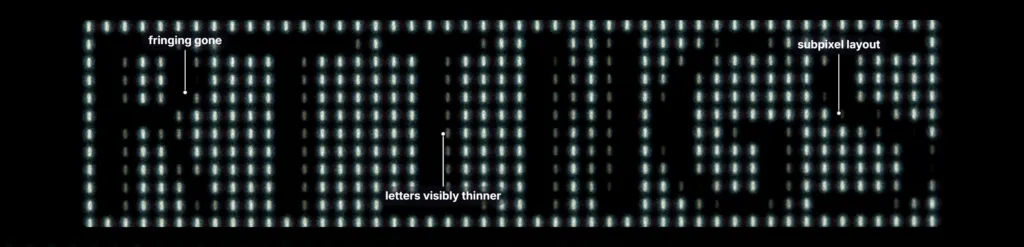
None of this is the panel being bad at its job. Nearly every IPS, VA and TN monitor arranges its subpixels in a straight RGB line, which is exactly what Microsoft’s ClearType rendering was built around decades ago. OLED doesn’t use that layout at all: WOLED panels run RWBG or RGWB arrangements, and QD-OLED panels use a triangular RGB layout instead. ClearType renders text assuming subpixels that aren’t there, and the mismatch is what shows up as colour fringing around letters. Check the subpixel layout on the spec sheet before you buy, because it’s the thing actually deciding how clean your text looks, not the panel’s gaming numbers.
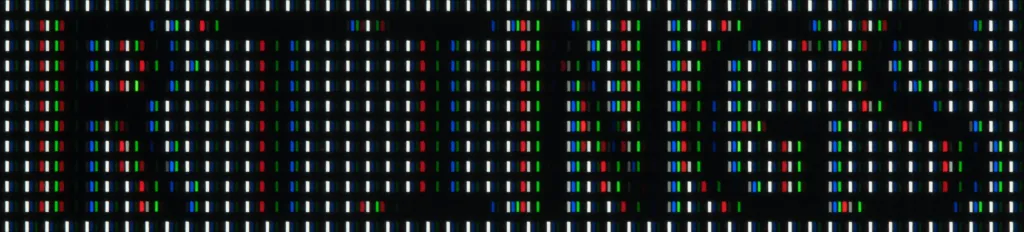
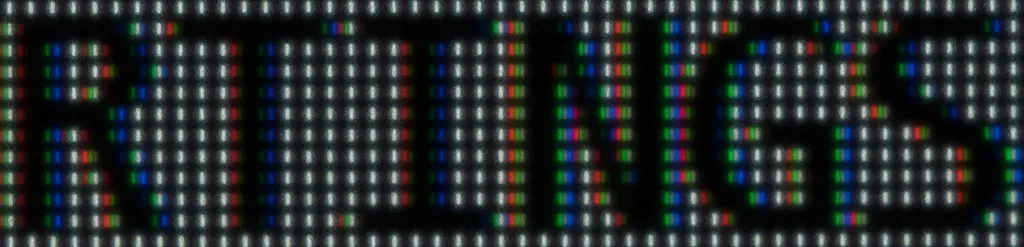
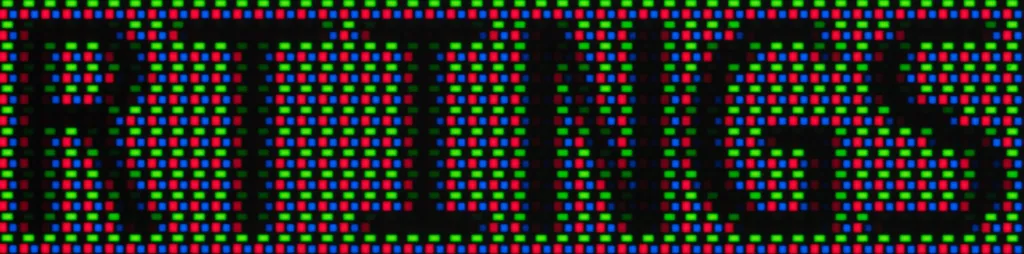
- Turn ClearType off on a WOLED and the fringing disappears, but letters come out thinner and weaker without it.
- Let WOLED’s dedicated white subpixel do the work: black text on a white background can render off that subpixel alone, sidestepping the colour fringing entirely.
- Buy denser: fringing on the Samsung Odyssey OLED G8/G80SD S32DG80 goes unnoticed by some owners simply because the pixel density is high enough to hide it.
- Run the Windows ClearType tuner if your panel’s subpixel layout is unusual – it won’t fix the mismatch but it tunes around it.
The 1,000-nit number on an OLED’s box is real, but it only ever applies to a window covering 1-3% of the screen – a highlight in a game, not the page you’re reading email on. Full-screen white is a different test entirely, and that’s where LED-backlit LCD pulls ahead: it can sustain much higher brightness across the whole panel than OLED can. XDA’s writer found the gap directly – he had to drop his LG 27GN950, an LED monitor, to about 50% brightness just to match the peak his OLED AW3423DW could put out. If you spend your day staring at white spreadsheets and documents rather than HDR highlights, that’s the number that matters, and it isn’t the one on the box.
Burn-in is a desktop risk, not a game risk
Games move; spreadsheets and coding interfaces don’t. A static HUD, a taskbar, a toolbar left in the same place for hours is what actually threatens an OLED panel, which is why burn-in is a desktop problem far more than a gaming one. Modern panels ship pixel refresh routines and brightness limiters to fight it, and those features do cut the risk down. They don’t remove it. Anyone running the same spreadsheet or IDE on screen all day is still the exposure, care features or not.
Owners build habits around this without noticing they’re doing it. XDA’s writer runs a black desktop with no icons and has set Windows to auto-hide the taskbar; he hasn’t put a wallpaper on an OLED monitor in years. It’s a routine that becomes invisible once it’s automatic, which is exactly what happened to him – he stopped thinking about burn-in altogether once he moved to the LG 27GN950. The habit is the mitigation; you only notice you’re running it when you go back to an LCD and catch yourself missing the icons.
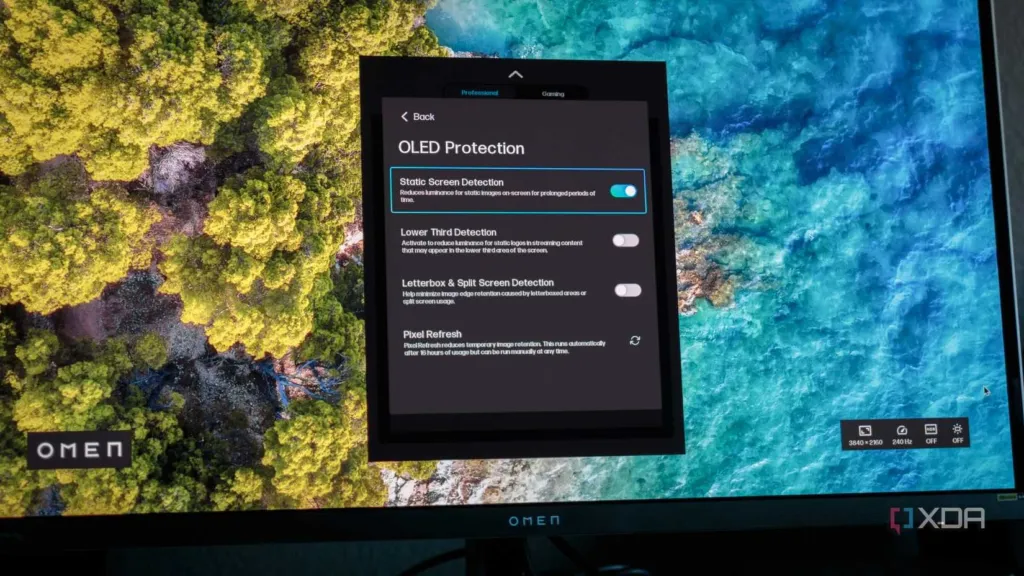
Newer OLEDs have mostly closed the text clarity gap, and tandem OLED monitors shipping this year push both text clarity and brightness further again. But mostly isn’t fully: text on XDA’s third-generation QD-OLED AW2725DF still trails IPS, by the account of a writer who has daily driven OLED monitors since 2022 and would notice the difference if it had gone away. That’s the answer for anyone assuming the newest panel on the shelf has already fixed what the first OLEDs got wrong – it hasn’t, not completely, even 3 generations in.
Reviewers’ picks: OLED, IPS and VA
Box.co.uk’s OLED pick, the ASUS ROG Swift PG32UCDP, pairs 4K with 240Hz on a 31.5-inch panel, two specs that usually force a trade-off against each other on any other panel type. Box quotes a 0.03ms pixel response time, the number that separates OLED motion from even a fast IPS screen running the same refresh rate. USB-C, G-Sync compatibility and the screen-protection features ASUS builds in are what let this work as a single everyday desk monitor rather than a gaming-only screen you switch to.
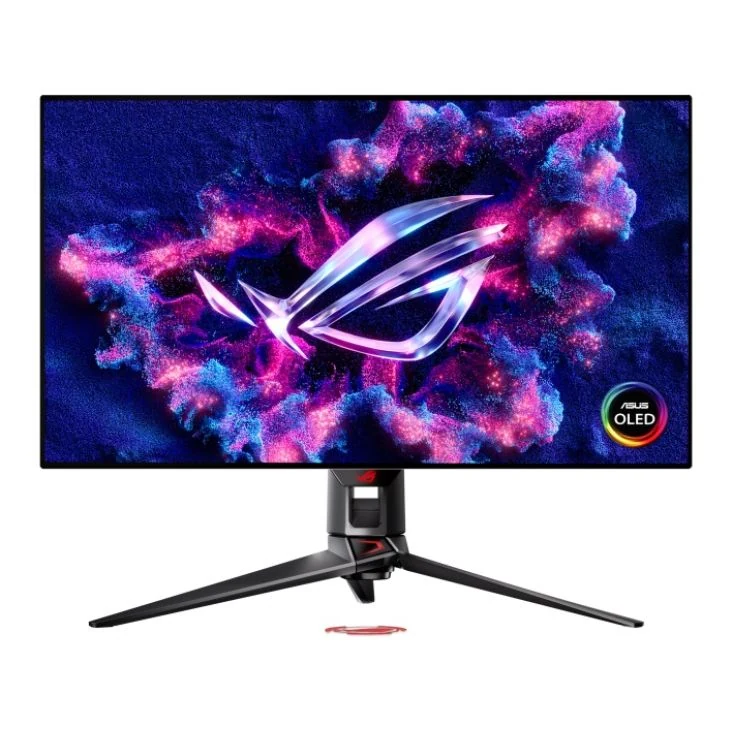
ASUS ROG Swift PG32UCDP
4K and 240Hz on one 31.5-inch OLED panelBox.co.uk’s OLED pick pairs resolution and refresh rate that usually force a trade-off, backed by a 0.03ms pixel response, USB-C, G-Sync compatibility and ASUS’s own screen-protection features.
Box’s IPS pick runs the opposite direction: the AOC G4 Q27G4SRU trades 4K for QHD and spends the headroom on speed, hitting 320Hz with a 0.3ms response time on a 27-inch Fast IPS panel. Box pitches it at CS2, Valorant, Fortnite and Overwatch 2, the kind of competitive shooters where frame rate decides a match and resolution is secondary. Staying at 1440p instead of chasing 4K at the same refresh rate keeps the GPU demand within reach of a mid-range card rather than requiring a flagship just to hit the panel’s ceiling.
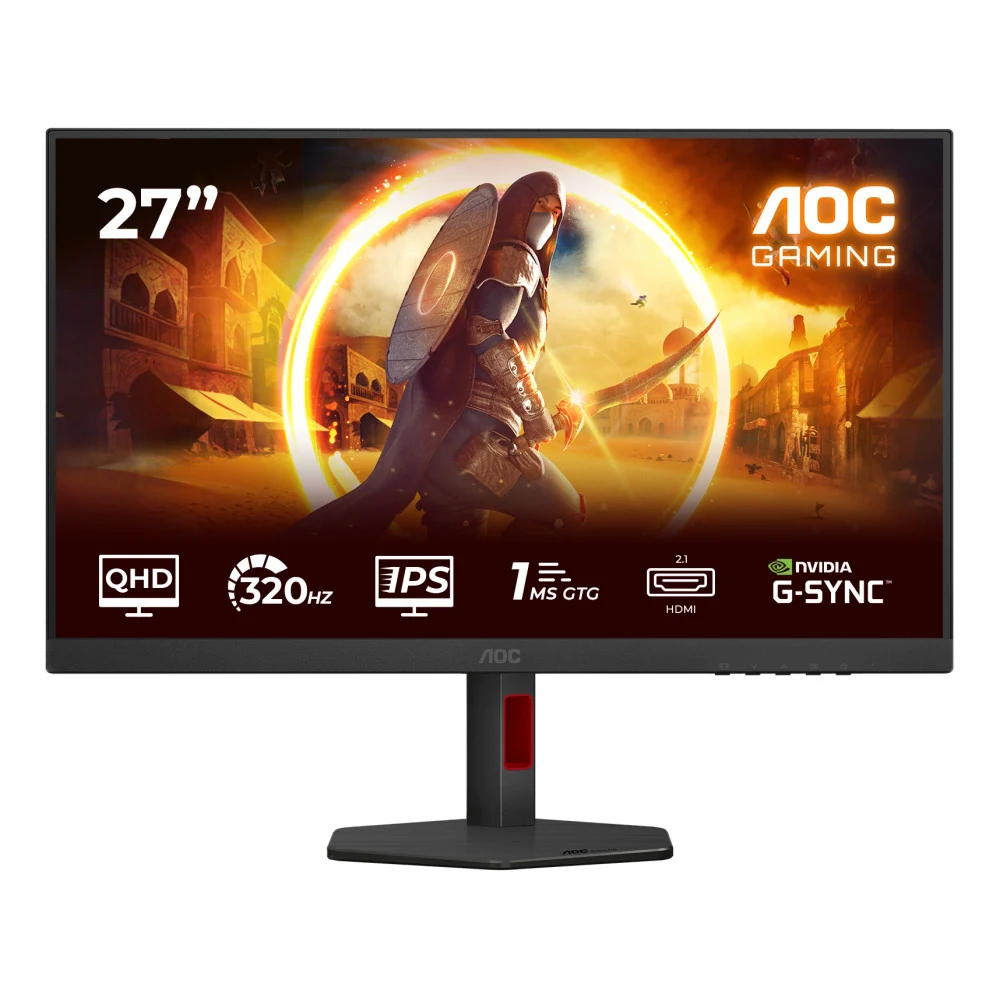
AOC G4 Q27G4SRU
320Hz and 0.3ms for competitive shootersBox’s IPS pick for esports, built around speed rather than resolution: 27-inch QHD at 320Hz with a 0.3ms response time, pitched at CS2, Valorant, Fortnite and Overwatch 2, with G-Sync compatibility and a height-adjustable stand.
Box’s VA pick, the ASUS ROG Strix XG32WCS, is a 31.5-inch curved panel at QHD, and it’s telling that Box quotes no refresh rate or response time for it at all. The pitch here is Elden Ring, Assassin’s Creed and Red Dead Redemption 2, story-driven games where VA’s deeper contrast than IPS and the curve’s sense of immersion matter more than a motion number. The height-adjustable stand is the practical touch, but this panel is bought for how it looks, not for how fast it reacts.
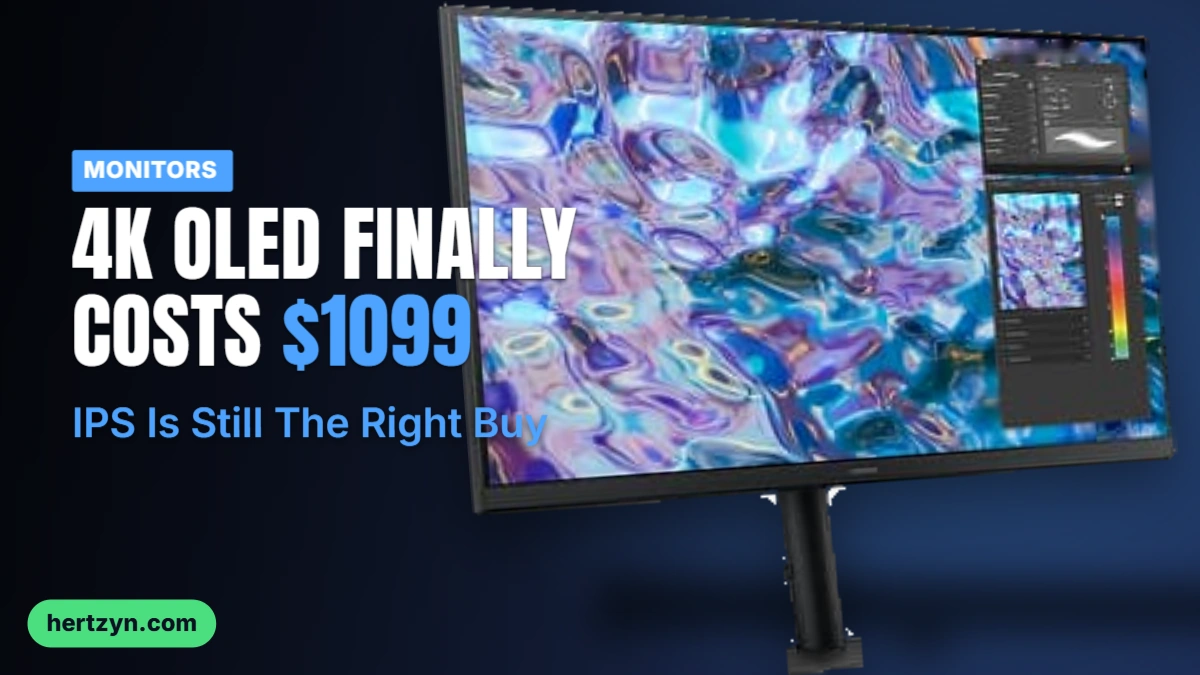
XDA scored the MSI MPG 272URX QD-OLED 9/10, the highest mark in this set, and it sits at the other end of the OLED tier from the ASUS: the same 4K resolution and 240Hz refresh, packed onto a 26.5-inch panel instead of 31.5 inches. That tighter pixel density is exactly what helps most against the text fringing OLED panels are prone to. The number that matters more, though, is the price: MSI lists the 272URX at $1099 at Amazon, one of the first 27-inch 4K OLED monitors and built on one of Samsung’s new 27-inch 4K QD-OLED panels, which is what turns 4K OLED from a halo product into something people actually buy. Two HDMI 2.1 ports, DisplayPort 2.1a and a USB-C port carrying 98W of power delivery round it out as a monitor that can run a laptop off one cable.
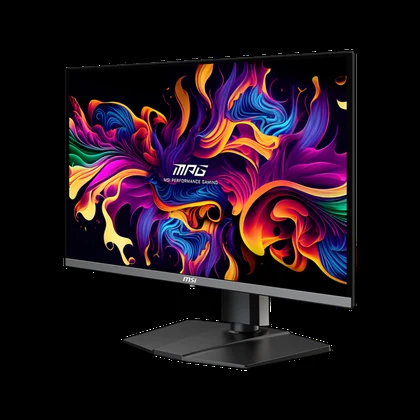
MPG 272URX QD-OLED
The highest-scored monitor in this setXDA’s 9/10 pick: 26.5-inch 4K QD-OLED at 240Hz for $1099, built on one of Samsung’s new 27-inch panels with two HDMI 2.1 ports, DisplayPort 2.1a and a 98W USB-C port.
| Monitor | Panel | Size | Resolution | Refresh rate | Response time | Price |
|---|---|---|---|---|---|---|
| ASUS ROG Swift PG32UCDP | OLED | 31.5″ | 4K | 240Hz | 0.03ms | — |
| MSI MPG 272URX QD-OLED | QD-OLED | 26.5″ | 3840×2160 | 240Hz | — | $1099 |
| AOC G4 Q27G4SRU | Fast IPS | 27″ | QHD | 320Hz | 0.3ms | — |
| ASUS ROG Strix XG32WCS | Curved VA | 31.5″ | QHD | — | — | — |
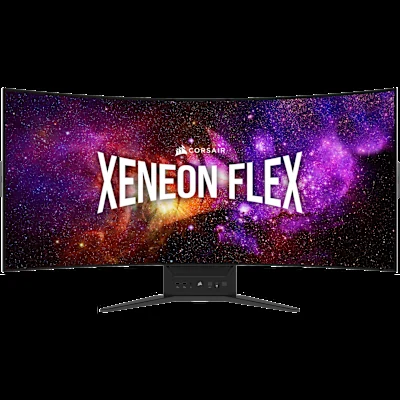
| CORSAIR XENEON FLEX 45WQHD240 | OLED | 45″ | 3440 x 1440 | 240Hz | 0.03ms | — |
The CORSAIR XENEON FLEX 45WQHD240 is the oddity in this lineup: a 45-inch 3440 x 1440 ultrawide that bends from completely flat to an 800R curve on command, covering flat-for-media and curved-for-games in the same panel. CORSAIR calls it the world’s first bendable OLED 21:9 gaming monitor and says OLED is what makes that bend physically possible at all. Past the party trick, the spec reads like any premium OLED: 240Hz, 0.03ms GtG, HDR with 1000nit peak brightness, a 1.5M:1 contrast ratio and 1.07 billion colours.
4K 240Hz QD-OLED selling at $1099 would have counted as an outlier spend a few years back, and buyers are starting to measure that number against something closer to home: what the rest of a gaming PC costs to build right now, RAM included.
I mean we cant complain about monitor prices. Thats like top of the line for only a grand meanwhile cheap ram will cost just as much rn
1440p and 27 Inches: Why That Pairing Holds
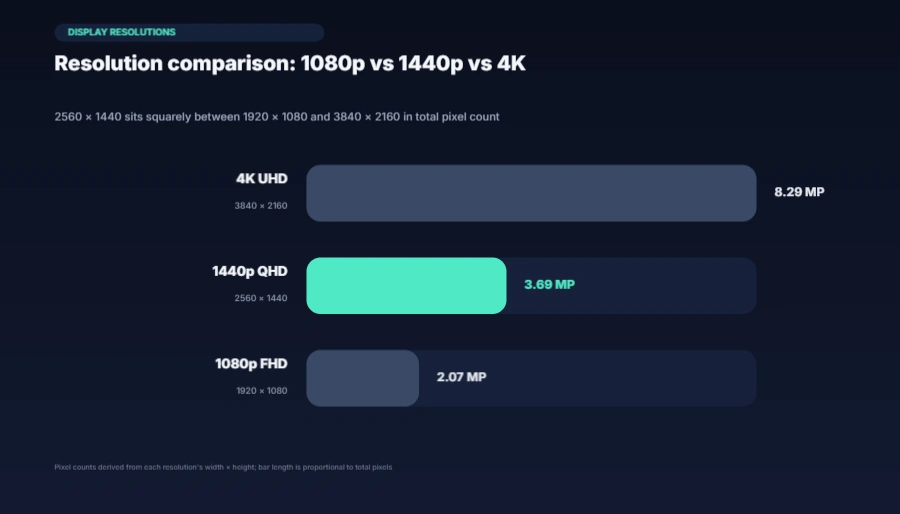
2560 x 1440, the resolution everyone calls QHD, holds 3.69 million pixels against the 2.07 million on a standard 1080p panel, a 78% jump. Put another way it’s four times the pixel count of 720p. That gap is what the step up from 1080p actually buys: more of a game world or a spreadsheet visible at once, not a bigger number on a spec sheet.
Pixel density is why 27 inches is the size people keep naming for this resolution. A 27-inch 1080p panel runs about 82 PPI; the same size at 1440p climbs to roughly 109 PPI, the number that makes text and UI elements look crisp rather than just big. Take that identical 1440p resolution and stretch it across a 32-inch panel instead and density falls back to about 92 PPI – the pixel count hasn’t changed, it’s just spread over more glass, and the image starts to look slightly soft.
Pixel density by screen size and resolution
Cram 4K into 27 inches and Windows has to compensate: the interface is unusable at 100% scaling, so it typically runs at 150-200% instead. That scaling fixes the size, but any app never built for high-DPI screens comes out blurry on top. 1440p at 27 inches sidesteps the whole problem – it’s usable at 100% scaling and still sharp pushed up to 125%, no compensation required.
| 1440p at 27 inches | 4K at 27 inches | |
|---|---|---|
| Pixel density | Roughly 109 PPI | Higher than 1440p |
| Windows scaling needed | 100% usable, 125% still sharp | 150-200% |
| Scaling side effect | None at 100% | Blurriness in apps not built for high DPI |
Pair that resolution with 144Hz or 165Hz and you’ve got the configuration Screen Resolution Test names as the enthusiast target. 144Hz refreshes the image 144 times a second against 60 on a standard panel, and anyone playing fast-paced genres should be treating 144Hz as the floor, not the ceiling. The combination works because it doesn’t demand a flagship GPU to run the way 4K at a comparable refresh rate does – sharp enough to look right, fast enough to feel right, without pricing out the card underneath it.
On a 27-inch panel, a 1440p screen is wide enough to fit two readable documents side by side, and the jump that actually registers to the eye is the one from 1080p up to 1440p – going further, from 1440p to 4K at that same 27 inches, is a real gain but a far smaller one. That changes once the panel grows. At 32 inches and larger, 4K makes a stronger case, because the pixel density has dropped far enough that the extra pixels start paying for themselves again.
Not everyone agrees with the 27-inch consensus. Some players skip desk-sized monitors entirely for something closer to a TV, and at that scale the trade-off stops being about pixel density and starts being about how much of your field of view the screen fills.
I play on a 48 inch display. It’s an entirely different experience. When I switched from a 20 inch monitor to this one, it felt like finally being inside the games instead of just watching them through a small window.
Resolution isn’t only a visual preference either. One competitive argument runs in the opposite direction from what you’d expect: at lower resolution, pixelation makes it harder to tell whether a crosshair is actually sitting on a player’s head, which turns extra pixels into a case for accuracy rather than just sharpness.
I actually play worse on lower resolution screens because it’s harder to see your crosshair and if it’s on the players head because everything is more pixilated so take that into account
Picking a size at 1440p
Sit close to your desk and 27 inches is the size that holds up, since it needs no display scaling at 1440p. Sit further back and the drop to about 92 PPI at 32 inches is a fair trade for the extra screen real estate – distance hides the softer density that a close-up view would catch.
1440p doesn’t only come in the standard 16:9 shape. Stretch it to 21:9 and you get 3440 x 1440, the ultrawide format that keeps the same 1440 vertical pixel count and adds horizontal room instead of height. It’s built up a following among simulation players specifically, the crowd that wants panoramic width around a cockpit rather than a taller image.
None of this makes 1440p a stepping stone to something else. GPU makers benchmark and market their cards against it directly, and DLSS and FSR extend how long that target stays reachable: both render the game internally at a lower resolution, then reconstruct up to 1440p, which puts a clean 1440p image within reach of hardware that could never push that pixel count natively. That’s the quiet reason the resolution keeps outlasting whatever card you bought it for.
Past 240Hz: How High Refresh Rates Actually Go
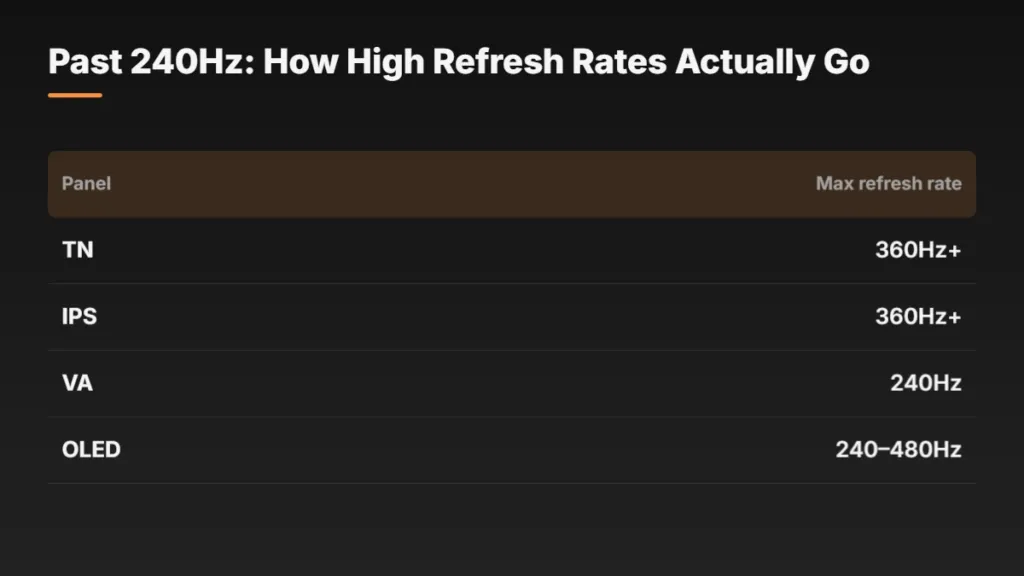
A 540Hz panel redraws its image 540 times every second, says Lenovo, which puts a fresh frame on screen roughly once every 1.85 milliseconds. Where that ceiling actually sits depends on who you ask: Newegg puts TN panels at 360Hz and beyond, while Samsung says TN has reached as high as 540Hz, and the two figures simply don’t agree. OLED, by Newegg’s numbers, spans 240Hz to 480Hz depending on the model, a wide enough range that knowing a monitor is OLED tells you almost nothing about where in that window it sits.
| Panel | Max refresh rate |
|---|---|
| TN | 360Hz+ |
| IPS | 360Hz+ |
| VA | 240Hz |
| OLED | 240–480Hz |
Why more Hz keeps buying real clarity isn’t a feeling, it’s arithmetic. Blur Busters Law states it plainly: every 1ms a pixel stays visible adds 1 pixel of blur per 1000 pixels per second of motion, and on a non-strobed panel running at its own refresh rate, the blur you see simply equals the refresh time. Halve the refresh time and you halve the smear, no more and no less. That law holds exactly when GtG, the time a pixel takes to switch colour, is zero, which is why OLED tracks it far more closely than any LCD technology does. An LCD’s pixel transition eats into the window the maths assumes is free; OLED’s doesn’t.
240Hz still isn’t blur-free
Even at 240Hz, a 4K OLED carries 4ms of refresh-time persistence, and at 4,000 pixels per second of motion that works out to 16 pixels of smear, enough, Blur Busters says, to fuzz fine text and ultrafine detail. Fully matching a CRT’s lack of blur on a sample-and-hold display takes 1000fps at 1000Hz, by Blur Busters’ own reckoning. 540Hz is a long way past 240Hz, but it’s still a long way short of that line.
Pros
- Cuts motion blur and input lag in fast games, says Lenovo
- Headroom for hardware that outpaces today’s frame rates
- The clearest gain in fast-paced, competitive titles
Cons
- Among the most expensive gaming monitors on the market, per Lenovo
- Only pays off if your PC can actually sustain those frame rates
- Few games or applications can use a 540Hz refresh yet
- Lenovo calls it overkill for slower-paced games
- Needs DisplayPort or HDMI 2.1 cabling to run at full rate
- Some consoles don’t support refresh rates this high
- Harder to find on shelves than slower-refresh models
240Hz is the refresh rate most buyers actually land on, and the jump that gets them there, from 144Hz, is the one players describe as a step change rather than a footnote.
facts I went from a 144hz monitor to a 240hz monitor a couple months ago and it is life changing.
Panels now stretch to 540Hz and beyond, but most players have no reference point past 240Hz to judge it against, which is its own kind of answer to what buying higher actually buys you.
I remember my first 240hz panel. Went from a MSI G24C to an Alienware 1080p 240hz monitor. It felt like cheating so I couldn’t even imagine 540hz let alone 720hz. Do tell me how it feels please, it has to be crazy.

Feeding the Panel: CPU, GPU and Sync Settings
The panel can redraw 240 or 360 times a second; whether anything new actually arrives that often is the processor’s decision, not the monitor’s. TechSpot ran a Ryzen 7 3800X in Battlefield 6 and couldn’t get it much past 100fps, and dropping the resolution didn’t fix that: TechSpot found CPU-limited results barely change between 1080p and 1440p, because resolution only matters once it’s loading the GPU heavily enough to become the bottleneck instead. A 3800X paired with a 360Hz panel is still a 3800X paired with roughly 100fps.
64% of polled Hardware Unboxed viewers run upscaling at 1440p, which means most of that audience isn’t actually rendering 1440p at all. DLSS Quality at 1440p renders at a 960p base, Balanced drops to 835p and Performance to 720p; even at 4K, DLSS Performance only renders 1080p internally before scaling up. Turning on upscaling shifts load back toward the CPU, so a monitor’s native resolution tells you a lot less about what your system is actually working on than the number on the box suggests.
Base render resolution at 1440p by DLSS mode
VRR, V-Sync and the Frame Cap
Running V-Sync on top of VRR sounds like undoing the point of VRR, but it’s the setup reviewers keep landing on. Inside the VRR range, V-Sync adds no noticeable input lag at all, because it isn’t doing anything there; V-Sync only catches frames that climb above the panel’s maximum refresh. The cap is what stops you ever reaching that ceiling in the first place, and without one, going above max refresh reverts to standalone V-Sync behaviour and the lag that comes with it.
- Enable G-Sync or FreeSync for both full screen and windowed mode.
- Turn Vertical Sync On in the NVIDIA control panel, not inside the game.
- Leave V-Sync off inside the game itself.
- Set a frame rate cap: 236fps on a 240Hz panel, 141fps on a 144Hz one.
- Set that cap inside the game rather than through NVIDIA’s panel limiter, which XPFEED says adds a little lag of its own.
| Refresh rate | Recommended fps cap | Source |
|---|---|---|
| 240Hz | 236fps | XPFEED |
| 144Hz | 141fps | XPFEED |
| 360Hz | 10-15fps below, about 3% | Chief Blur Buster |
| 75Hz | 72fps | Chief Blur Buster |
The old rule of thumb was a flat 3fps below maximum refresh, a margin that made sense at 75Hz but stops scaling once refresh rates climb. Chief Blur Buster now suggests capping about 3% below instead, which at 360Hz works out to 10-15fps rather than 3: XPFEED’s fixed-gap numbers and Chief Blur Buster’s percentage are answering different questions, one measuring an absolute distance and the other a proportion of the ceiling. Less performant FreeSync and G-Sync Compatible setups may need an even bigger margin than either figure, and NVIDIA Reflex, when it’s running, applies a bigger safety margin than the old 3fps rule on its own.
NVIDIA Reflex cuts input lag by 10 to 30ms depending on the game, on any GTX 900 or newer GPU, and it’s already built into Valorant, CS2, Apex, Call of Duty and Fortnite. Turn it on and it applies its own automatic cap a few fps below refresh, so there’s no separate number to calculate; it’s the closest thing in this whole setup to a free upgrade.
Don’t stack two frame caps
Reflex applies its own cap automatically, so leaving a manual frame limiter running alongside it isn’t extra insurance, it’s two caps fighting each other. Running both at once adds noise to frametimes instead of smoothing them out. Pick one: turn off the manual cap and let Reflex manage it, or turn off Reflex’s auto-cap and keep your own.
Getting a monitor dialed in now means configuring VRR, V-Sync, a frame cap and Reflex, in that order, each one with its own setting to get wrong. A 60Hz monitor only ever offered a single choice: V-Sync on, or V-Sync off.
It’s all a bit complicated, I miss the days where you just had a 60hz monitor and decided between Vsync or no Vsync and that was it.