
Key Takeaways
- 1If you’re still on a hard drive, that’s the one upgrade that actually changes how a game feels; moving to any SSD is the jump GameCentrality’s testing shows mattering most.
- 2Going from a SATA SSD to NVMe is worth a few seconds on a load screen in most games, so a quality SATA SSD you already own isn’t worth replacing for play alone.
- 3GameCentrality found 2 Gen4 NVMe drives indistinguishable from a Gen5 flagship once a game was actually loading, not a synthetic benchmark running.
- 4Monster Hunter Wilds is the exception that proves the rule: its Steam page requires an SSD or NVMe with DirectStorage, and a SATA SSD running at 535 MB/s showed visible texture and asset delays that a WD_BLACK SN850X on PCIe 4.0 at 7300 MB/s didn’t.
- 51TB is the floor, not the comfortable number it used to be, once games routinely exceed 100GB each; 2TB is the more honest baseline if you keep several big titles installed.
- 6A Gen5 drive needs a real heatsink or active cooling to hold its rated speed, and thermal throttling mid-session can quietly erase the lead it was bought for.
- 7Check your motherboard manual before buying a second M.2 drive: Corsair and How-To Geek measured the hit from dropping a GPU to x8 PCIe 5.0 at 1-2% and 1-3% of frame rate respectively, small but real if you’re stacking drives on the wrong slot.
- 8Backblaze’s data puts lifetime SSD annualised failure rate at 0.92%, but the per-model numbers aren’t reliable yet since not one SSD model has cleared the 100-drive, 10,000-drive-day threshold the company requires before trusting a figure.
- 9Skip the peak sequential number on the spec sheet; a real DRAM cache and a reputable controller predict what you’ll actually feel during streaming and fast-travel better than the headline figure does.
- 10Supply pressure is real and not temporary: hyperscalers have global SSD capacity locked under contract through 2026 and Kioxia’s own guidance runs through fiscal year 2027, so buy for the drive you need now rather than waiting on a price drop.
The Rated Speed Ladder: HDD to Gen5 NVMe
A 7200 rpm hard drive reads somewhere between 100 and 200 MB/s, and every step above it on the spec sheet roughly doubles the last one. SATA SSDs cap out near 550 MB/s, not because the flash inside them is slow but because the SATA connection itself can’t carry any more. Step onto NVMe and the ceiling moves to whatever PCI Express will allow: Gen3 NVMe is rated around 3,500 MB/s, Gen4 sits near 7,000 MB/s, and Gen5 clears 10,000 MB/s or more. 4 tiers, four numbers, each one roughly twice the last – that’s the ladder printed on the box.
Rated sequential read speeds by drive type
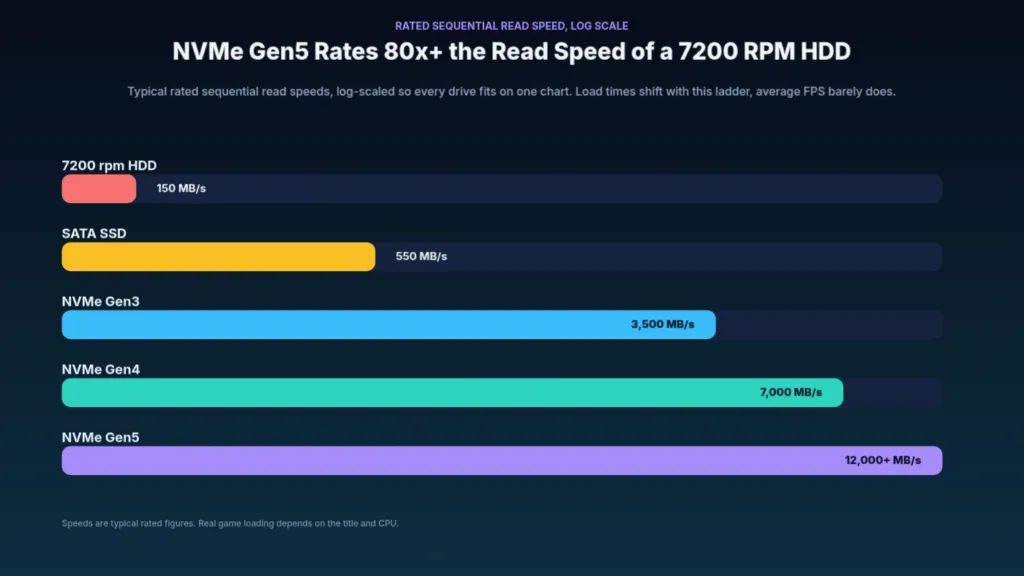
None of that ladder is how a game actually asks for data. Hard drives are at their worst on exactly the kind of access gaming demands: lots of small reads scattered across the disk rather than one long continuous stream, which is where a mechanical drive’s seek time kills it. NVMe’s sequential number doesn’t fare much better as a predictor, because loading a game leans on small random reads and on the CPU decompressing files as they come in, not on how fast the drive can stream one giant block. Measure the wrong thing and the real-world gain between tiers shrinks to a fraction of what the rated figures above promise.
The headline number is a burst, not a cruising speed
PC Gamer’s warning for anyone who’s run their own benchmark and gotten a lower number than the box promised: those quoted read and write figures are theoretical maximums, and a drive only holds them for a short burst, not across a long sustained transfer. How long that burst window lasts isn’t fixed either – it varies by drive model, so 2 drives wearing the same rated speed on the spec sheet can behave very differently once you’re moving real data for more than a few seconds.
Put those drive numbers next to what the PCIe bus underneath them can actually carry and the picture changes again. An NVMe drive uses 4 lanes to hit its rated speed, which works out to 7.88 GB/s on a PCIe 4.0 x4 link and 15.76 GB/s on PCIe 5.0 x4, per CORSAIR’s throughput figures. A graphics card running a full x16 PCIe 5.0 link has 64 GB/s to itself – several times what even a Gen5 drive is asking for. The bus has headroom to spare; it’s everything else in the chain, from how the OS requests data to what the CPU does with it, that decides whether a drive’s rated number ever shows up in a loading screen.
| Link | Throughput |
|---|---|
| PCIe 4.0 x4 | 7.88 GB/s |
| PCIe 4.0 x16 | 31.51 GB/s |
| PCIe 5.0 x4 | 15.76 GB/s |
| PCIe 5.0 x8 | 31.51 GB/s |
| PCIe 5.0 x16 | 63.02 GB/s |
Monster Hunter Wilds on 4 Storage Tiers
Monster Hunter Wilds asks for an SSD or NVMe drive with DirectStorage at every single tier on its Steam page, which tells you something before a single frame renders. The game was built around the PS5’s 5.5 GB/s uncompressed read speed, and Sony’s Kraken compression lets that console pull compressed data at 9.9 GB/s, so the engine assumes storage that fast is just there. A Steam forum tester decided to find out what happens when it isn’t, installing the same game on a Gen4 NVMe, a Gen3 NVMe, a SATA SSD and a hard drive and logging exactly what broke on each.
| Drive | Interface | Rated read | Rated write |
|---|---|---|---|
| WD_BLACK SN850X | PCIe 4.0 | 7300MB/s | 6600MB/s |
| WD_BLACK SN750 | PCIe 3.0 | 3470MB/s | 3000MB/s |
| SanDisc SSD Plus | SATA 3.0 | 535MB/s | 350MB/s |
| WD_Black HDD | SATA 3.0 | 150MB/s | 150MB/s |
| CPU | AMD Ryzen 9 9900X |
| Motherboard | Asus Prime X670E Pro Wifi – BV:3222 |
| Memory | 64GB @ CL34 6000MT/s MCLK = UCLK |
| GPU | AMD Sapphire RX7900XTX Nitro+ |
| OS | Windows 11 Pro 64bit 24H2 |
| Resolution | 1080P |
| Game settings | Native Rendering – No FSR/Framegeneration, Max Settings – High Raytracing |
The drive was the only thing allowed to change. Everything else in the rig stayed fixed: a Ryzen 9 9900X on an Asus Prime X670E Pro Wifi, 64GB of memory running CL34 at 6000MT/s with MCLK matched to UCLK, an RX7900XTX Nitro+ doing the rendering, and Windows 11 Pro 24H2 underneath it all. Settings were locked to 1080P native, max detail, high ray tracing, with FSR and frame generation both switched off, so nothing could paper over what the storage was or wasn’t delivering in time.
- WD_BLACK SN850X (PCIe 4.0): no issues of any kind
- WD_BLACK SN750 (PCIe 3.0): texture load delays only
- SanDisc SSD Plus (SATA SSD): texture load delays plus asset load delays
- WD_Black HDD: texture, asset and world load delays stacked together, which the tester called unplayable
Here’s the part that should reset how people read these tests: the frame counter barely moved. Every drive eventually settled on the same fps once loading actually finished, and the slower drives sometimes posted slightly higher numbers along the way, not lower. That’s because a texture or asset that hasn’t arrived yet is a texture or asset the GPU isn’t drawing, so the hard drive’s missing content left both GPU and CPU with less work to do. Stand still long enough for everything to catch up and the fps across all 4 drives converges on the same figure – the drive was never changing how fast the game ran, only how much of it was actually on screen.
The Tester’s PS5-Equivalent PC Spec
The tester’s own build for matching the PS5 experience puts storage on the spec sheet, not in the footnotes: a Ryzen 5700X or 5800X on the CPU side, an RX6750XT with 12GB of VRAM for graphics, and Gen4 NVMe with DirectStorage support for storage, the whole thing aimed at native 30 fps at 1080P on medium settings. Pull the NVMe drive out of that list and the spec stops describing the PS5 experience at all.
A reply from SvegetaX in the same thread adjusts the Nvidia side of that equation once ray tracing gets switched on. Turning it on pushes you up to a 3080, because the 3060 Ti and the 3070 both ran into VRAM limits before they ran into a frame rate wall. That’s exactly why a 12GB version of the 3060 turned up later: not as an upgrade, but as a gap filler for the VRAM those two cards didn’t have enough of.

4 Drives, One Stopwatch: GameCentrality’s Cold-Load Test
GameCentrality kept the platform fixed and let the drives be the only variable: the same CPU and RAM sat behind every run, and a clean OS image got restored between drives so background clutter couldn’t skew a number. Every game load went onto the same partition no matter which of the four drives was installed, and each load was timed three times from a cold state, since that’s the only way to average out a caching fluke rather than mistake it for a finding. That rigor matters here, because the gaps between tiers came out small enough that sloppier testing would have buried them in noise entirely.
- An open-world RPG with a fast-travel loop bad enough to punish any slow drive
- A shooter that streams high-resolution texture sets on the fly
- An older engine that ignores disk speed entirely
- A DirectStorage-aware title run as its own separate test
- Menu-to-save times logged on every drive
- Fast-travel transition times logged on every drive
- Level-reload times logged after every death
- Synthetic sequential and random throughput kept as background context, not the verdict
Inside NVMe territory, the returns nearly vanished. The 2 Gen4 drives were indistinguishable from the Gen5 flagship with a stopwatch running, and indistinguishable to the eye without one. Where the Gen5 drive did pull ahead, the lead was a fraction of a second, and it showed up on loads that already felt instant to begin with. The older engine returned near-identical times across all 4 drives, because storage was never what held it up in the first place, which means that if most of what’s installed on a PC right now is a few years old, no amount of extra NVMe speed is going to shave anything off those load screens.
The one place the newer drives earned their keep was the DirectStorage title. There, the drives genuinely streamed assets faster, and texture pop-in on the shooter settled down quicker than it did on the Gen3 baseline. That’s the exact case the marketing promises, and it held up under a stopwatch, it’s just that DirectStorage titles are still a minority of what sits in most people’s libraries today.
None of the huge gaps from the synthetic pass ever showed up in the playable timings, and the reason is that loading a game isn’t one step, it’s a chain. The drive hands off data, the CPU still has to decompress it, and the engine still has to build the scene before control comes back, so a Gen5 drive spends much of a load simply waiting on everything downstream of it to catch up. Shader compile stutter is the one hitch in that whole chain that no drive, at any generation, fixes.
The Gen5 Heat Tax
Gen5 drives run hot enough that they need a real heatsink or active cooling just to hold their rated speed, and thermal throttling mid-session can quietly erase whatever lead they had over a cheaper Gen4 drive, a loss that never shows up on the spec sheet it was bought against. That’s on top of the premium Gen5 still carries over Gen4 at retail.
If you’re reading a spec sheet rather than a benchmark chart, skip past the peak sequential figure and look for a real DRAM cache and a reputable controller instead. Sustained throughput and random reads are what you actually feel while a game streams textures or loads into a fast-travel point, and peak sequential is the number a marketing slide leads with precisely because almost nobody’s actual workload touches it.
SATA SSDs Against NVMe for Actual Gaming
The upgrade ladder has one rung that matters and several that don’t. Trading a hard drive for any SSD, SATA or NVMe, is the jump you feel every time Windows boots or a level loads. Going from a SATA SSD up to NVMe is a much smaller step in the games people actually play, and neither move touches average frame rate at all, because the CPU and GPU decide that number long before the drive gets a vote.
Put a stopwatch on the SATA-to-NVMe jump and it’s usually worth a few seconds on a load screen, nothing more. A quality SATA SSD is still a genuinely good gaming drive on that basis, and anyone sitting on one already has little reason to chase an upgrade for play alone. Buying fresh is a different question: there, a Gen4 NVMe drive is the sensible pick, since it costs little over SATA and clears whatever ceiling might matter later.
The reason the big sequential numbers barely move the needle is that a load screen isn’t one task, it’s several stacked on top of each other. Loading a game leans on small random reads as much as the big sequential kind the spec sheet advertises, and even once the data is off the drive, the CPU still has to decompress it, the engine has to assemble the scene, and shaders have to compile before anything draws to screen. A fast drive spends a chunk of that load just sitting there waiting on everything else to catch up.
GameCentrality’s cold-load numbers back that up directly. Timing loads in a large open-world RPG, the big collapse in load time happened the moment the hard drive left the test bench, and nothing after that mattered to the stopwatch: the Gen4 drives and the Gen5 flagship came out indistinguishable from each other once both were NVMe.
Reviewers aren’t alone in reaching that conclusion. Owners who’ve been running old SATA drives for years say the same thing, just without the spreadsheet.
The difference between NVMe and SATA in gaming performance is almost non existent. On paper there’s a difference, but in real life they’re basically identical so keep that in mind.
Some of those drives have been running since SATA 3 was the new thing, and that’s exactly why this argument hasn’t gone away.
I remember using sata3 ssd’s when they came out, what a game changer. Still got em and still 100% health.
Not everyone buys that SATA still deserves a seat at the table in 2026.
bro is fighting for sata ssd’s life in 2026 like it’s an ancient relic from the bronze age lol
The floor under all of this is moving, though. Some newer games now list an SSD as a hard requirement rather than a recommendation, while a hard drive still technically boots and runs plenty of older titles, just with long loads, texture pop-in, and hitches as an open world streams in new areas around you.
Monster Hunter Wilds is the game that actually breaks the ‘SATA is fine’ argument. It lists an SSD or NVMe drive with DirectStorage as a requirement, not a suggestion, and in testing a SanDisc SSD Plus running SATA 3.0 at 535 MB/s showed visible texture and asset load delays that a WD_BLACK SN850X on PCIe 4.0 at 7300 MB/s simply didn’t. That’s the streaming-heavy exception proving the rule rather than overturning it; both drives came off the same test run, and most games still aren’t built the way Wilds is.
| Drive tier | Typical rated sequential read | What it changes in games |
|---|---|---|
| 7200 rpm HDD | 100 to 200 MB/s | Long loads, texture pop-in, stutter in open worlds |
| SATA SSD | around 550 MB/s | Biggest single upgrade for load times and streaming |
| NVMe Gen3 | around 3,500 MB/s | Small real gain over SATA in most games |
| NVMe Gen4 | around 7,000 MB/s | Good value pick when buying new |
| NVMe Gen5 | 10,000 MB/s or more | Runs hotter, needs a heatsink, little extra for games today |
Pros
- Clears the only storage step that actually matters for gaming: HDD to SSD
- Upgrading further to NVMe is usually worth a few seconds of load time at most, so staying on SATA costs you almost nothing in most games
Cons
- Hard-capped at around 550 MB/s by the SATA connection itself, not the flash inside it
- Streaming-heavy modern games can expose that ceiling directly: Monster Hunter Wilds showed texture and asset load delays on a SATA SSD
- Some newer games now list an SSD as a hard requirement, and that list of games asking for more is only going to grow
3DMark’s DirectStorage Feature Test
A normal storage transfer runs in a straight line: data moves off the drive into memory through one queue, and that queue bottlenecks on the SSD or the CPU long before either part hits the ceiling it’s rated for. DirectStorage skips the queue by setting aside a large pool of system memory and running several transfers into it at once, which cuts the work the CPU has to do just shuffling bytes around. The newest version of the API goes a step further and lets the GPU take over decompression instead, so the chip already doing the rendering also unpacks the data it’s about to use. None of this makes the drive itself faster. It just stops the old path, one CPU managing one queue, from being the thing holding the number down.
UL built its DirectStorage test as exactly that, a feature test, with no overall score waiting at the end. What it hands back is a set of estimated throughput numbers, in gigabytes per second, for three separate stages of the same transfer. Stage one runs without DirectStorage at all, stage two turns the API on, and stage three keeps the API on and adds GPU decompression through GDeflate on top of it. Running all three back to back is the only way to see which part of the pipeline was actually holding a given drive back.
- Stage one measures how fast the same data moves without DirectStorage involved at all.
- Stage two turns DirectStorage on and measures that same transfer running through the API.
- Stage three keeps DirectStorage on and adds GPU decompression through GDeflate, then measures that.
- Each stage reports its own estimated gigabytes per second rather than feeding into one final score.
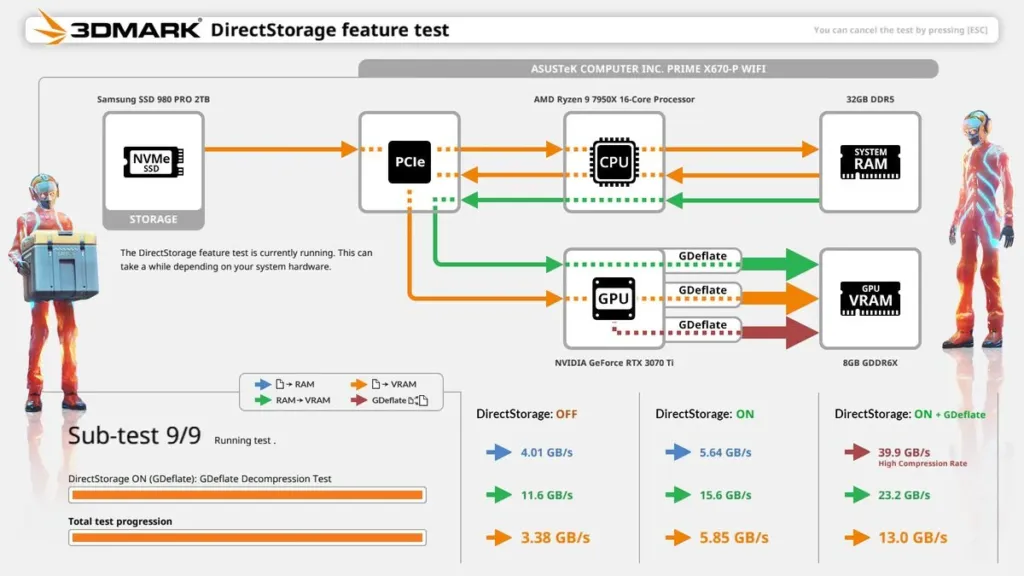
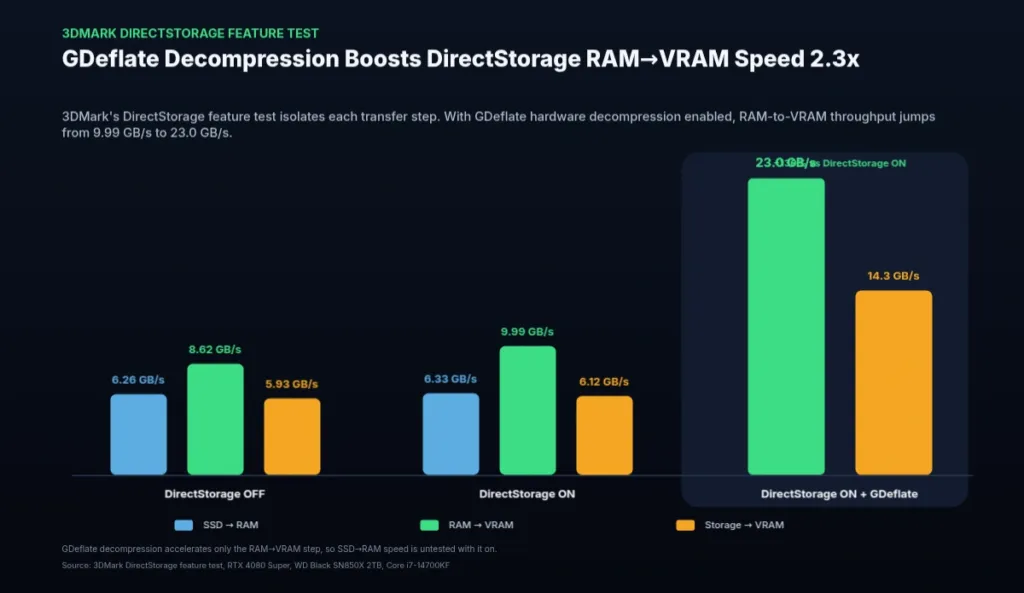
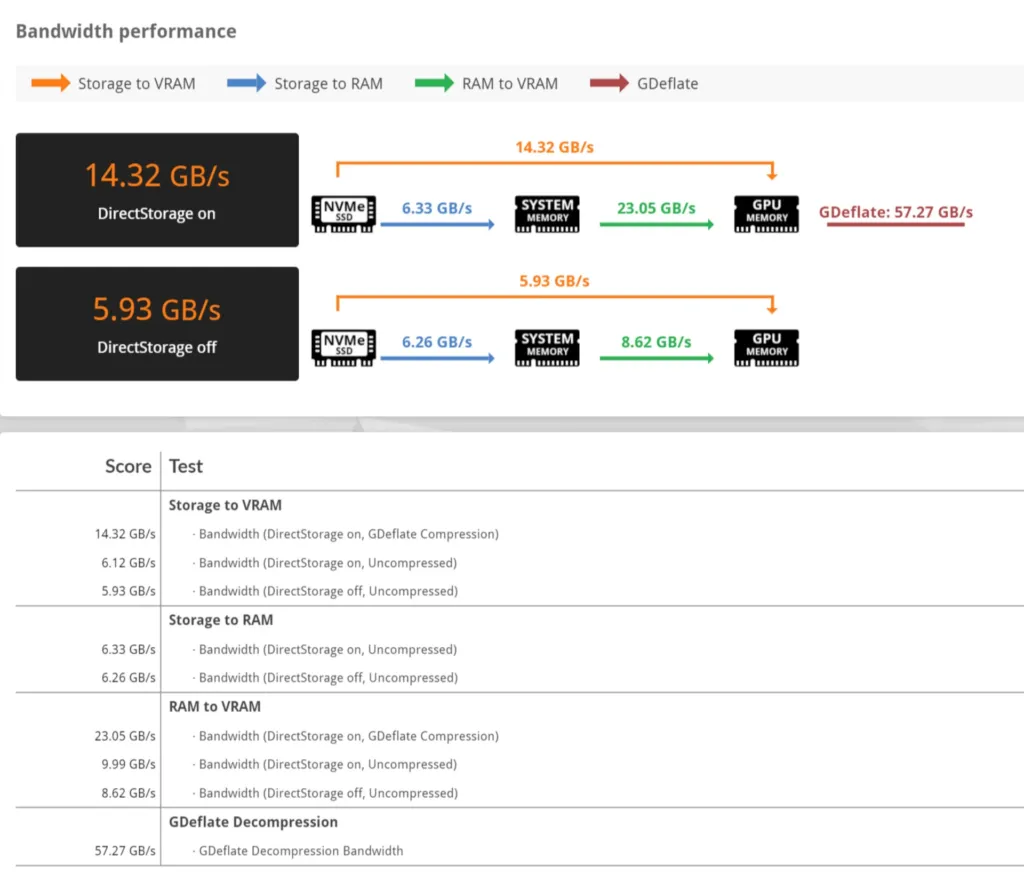
Horizon Forbidden West is the clearest example of a game taking half of what DirectStorage offers. It uses the API to pull save data quickly, but it leaves GDeflate switched off: the GPU is already busy rendering a huge open world, and handing it decompression work on top of that would cost frame rate the game can’t spare. Every bit of decompression in Horizon Forbidden West runs on the CPU instead, and the game still loads saves very quickly without the GPU doing any of that work.
Most games never bothered with DirectStorage at all, and the reason is simple: storage was never what was holding their load times back. Something else in the pipeline was the actual bottleneck, so an API built to speed up the trip from drive to VRAM had nothing to fix. Support across games is still thin enough that it shouldn’t be a reason to pick one drive over another.
What the Numbers Here Actually Mean
Treat the figure 3DMark hands back as a ceiling, not an average. SSD read and write speeds on the box are already theoretical maximums, hit only in short bursts rather than held for the length of a real load, and how long that burst lasts varies from one drive model to the next.
- Running the 3DMark DirectStorage feature test costs money unless the storage benchmark DLC is already part of your 3DMark license, and even then it’s only a handful of pounds or dollars.
- The one thing worth doing for free: turn DirectStorage on in any game that offers the option.
Splitting PCIe Lanes Between GPU and M.2 Storage
The Ryzen 7 9800X3D ships with 28 native PCIe 5.0 lanes, which sounds like plenty until you watch where they go. Four get carved off for the chipset link before anything else happens, leaving 24 for actual hardware. The graphics card takes 16 of those, the first M.2 slot takes 4, and whatever’s left — 4 lanes, covers every other PCIe slot on the board, including a second M.2 if you want one.
| CPU | AMD Ryzen 7 9800X3D |
| Native PCIe 5.0 lanes | 28 |
| Reserved for chipset link | 4 |
| Available to devices | 24 |
| Graphics card | 16 lanes |
| First M.2 SSD slot | 4 lanes |
| Other PCIe slots or extra M.2 | 4 lanes |
One GPU and one NVMe drive already account for 20 of those lanes. Add a second M.2 drive and the requirement climbs to 24, but most motherboards only hand out 20 lanes total to work with. A GPU needs a full x16 slot and an M.2 drive needs x4, so when the board comes up 4 lanes short, it doesn’t starve the SSD, it drops the graphics card from x16 down to x8.
Not every second M.2 slot costs you those lanes. Wire it to the chipset instead of straight to the CPU and the GPU keeps its full x16, because the chipset works as its own hub for extra drives and peripherals downstream. Some high-end boards do the opposite on purpose, sharing a secondary M.2 slot’s bandwidth with the x16 slot by design, and the manual spells out exactly which rule applies to that board. Load a board up with 3 or 4 NVMe drives and lane sharing stops being a maybe.
Check the Manual Before You Pick a Slot
Every motherboard manual lists which M.2 slot forces the x16 slot down to x8, read it before you install anything. Corsair’s advice is simpler still: buy 1 or 2 large SSDs instead of several small ones, so the question of which slot to use never comes up.
What x8 PCIe 5.0 Actually Costs in Frames
Corsair measured the hit from dropping to x8 PCIe 5.0 at 1-2% of frame rate, and How-To Geek put the same x16-to-x8 gap at 1-3%. Corsair credits Gamers Nexus and JayzTwoCents as the source of its x8 numbers, and even stepping all the way back to PCIe 3.0 bandwidth — 16GB/s, only cost 2-4% according to Corsair’s own testing.
Frame rate loss from reduced GPU lane bandwidth
The reason the hit stays small is that every PCIe generation doubles the bandwidth each lane carries. Half the lanes on PCIe 5.0 works out to roughly the same bandwidth as all the lanes on PCIe 4.0: x8 PCIe 5.0 delivers 32GB/s against a full x16 PCIe 5.0 link’s 64GB/s, and that 32GB/s sits right alongside x16 PCIe 4.0’s 31.51 GB/s. A graphics card isn’t close to using either figure.
| Link | Throughput |
|---|---|
| PCIe 5.0 x16 | 63.02 GB/s |
| PCIe 5.0 x8 | 31.51 GB/s |
| PCIe 4.0 x16 | 31.51 GB/s |
| PCIe 4.0 x8 | 15.76 GB/s |
| PCIe 3.0 x16 | 15.76 GB/s |
| PCIe 3.0 x8 | 7.88 GB/s |
The numbers above assume you’re on PCIe 5.0 or 4.0. Drop a system still running PCIe 3.0 down to x8 and the ceiling gets a lot more real, because there’s far less headroom to spare in the first place. Games mostly don’t notice any of this, but workloads that constantly shuffle data between system memory and VRAM do, heavy 3D rendering and training local AI models can both hit a genuine bottleneck at x8 where a game simply won’t.
How Much PCIe 5.0 Each AM5 Chipset Allows
The CPU’s lane count is only half the story, the chipset decides how many of them you’re actually allowed to use. X870E and X670E each expose the full 24 usable PCIe 5.0 lanes, but B850 lists just 4, and B650, B840 and A620 list none at all. 2 boards built around the same 9800X3D can behave completely differently depending on which chipset sits underneath.
| Chipset | Max usable PCIe 5.0 lanes | Total PCIe lanes |
|---|---|---|
| X870E | 24 | 44 |
| X870 | 24 | 36 |
| X670E | 24 | 44 |
| X670 | 8 | 44 |
| B650E | 24 | 36 |
| B850 | 4 | 36 |
| B650 | 0 | 36 |
| B840 | 0 | 34 |
| A620 | 0 | 32 |
PC Gamer ran straight into this while running the 3DMark DirectStorage test. Filling the board’s main M.2 slot left the graphics card running on 8 of its 16 PCIe lanes, and the RAM-to-VRAM transfer figure that test reports came back held down as a result. Worth knowing before comparing your own DirectStorage score against anyone else’s.
Builders dealing with real boards have worked this out the hard way too. One viewer’s setup splits storage duty on purpose, and the warning that comes with it is the same one the lane math above points to.
I kept the sata SSD for the OS to have the nvme complete for gaming. Also be aware that nvme use pcie lanes, so 2 nvme+gpu can already be enough to heavily limit the nvme in speed (check out your mobo for details)
Backblaze’s SSD vs HDD Boot Drive Failures and Endurance Maths
Backblaze has been swapping failing hard drives for SSDs in its storage servers since the fourth quarter of 2018, and 6 years of that swap is finally long enough to say something. The catch is that the two fleets sit at different points on their life curves: SSDs are, on average, younger than the hard drives they’re replacing, and a drive’s failure odds change with age no matter what it’s made of. Backblaze handles that by comparing one-year-old SSDs against one-year-old hard drives rather than the whole fleet against the whole fleet, which is the only way the number means anything. These aren’t idle boot drives either. They write logs and temp files constantly and read, write and delete depending on whatever the server happens to be doing, so the workload behind the numbers below is real wear, not a drive sitting there waiting to be asked something.
| Backblaze SSD measure | Figure |
|---|---|
| Lifetime AFR, all SSD models | 0.92 percent |
| Full-year 2021 AFR | 1.04 percent |
| Q2 2021 AFR | 0.92 percent |
| SSDs in storage servers, June 30 2022 | 2,558 |
| SSDs covered in the March report | 2,200 |
| Failures in Q1 2022 | 7 |
| Failures in Q2 2022 | 7 |
The lifetime annualised failure rate across every SSD model Backblaze runs is 0.92 percent, down from 1.04 percent for the whole of 2021 and landing exactly on the 0.92 percent recorded back in Q2 2021. The fleet grew from 2,200 SSDs in the March report to 2,558 by June 30, 2022, and both Q1 and Q2 of that year logged seven failures each. Seven failures spread across a bigger pool of drives produces a lower rate on paper even though nothing about the failures themselves changed, so part of that quarterly improvement is just more drives sharing the same handful of breakdowns rather than the drives getting hardier.
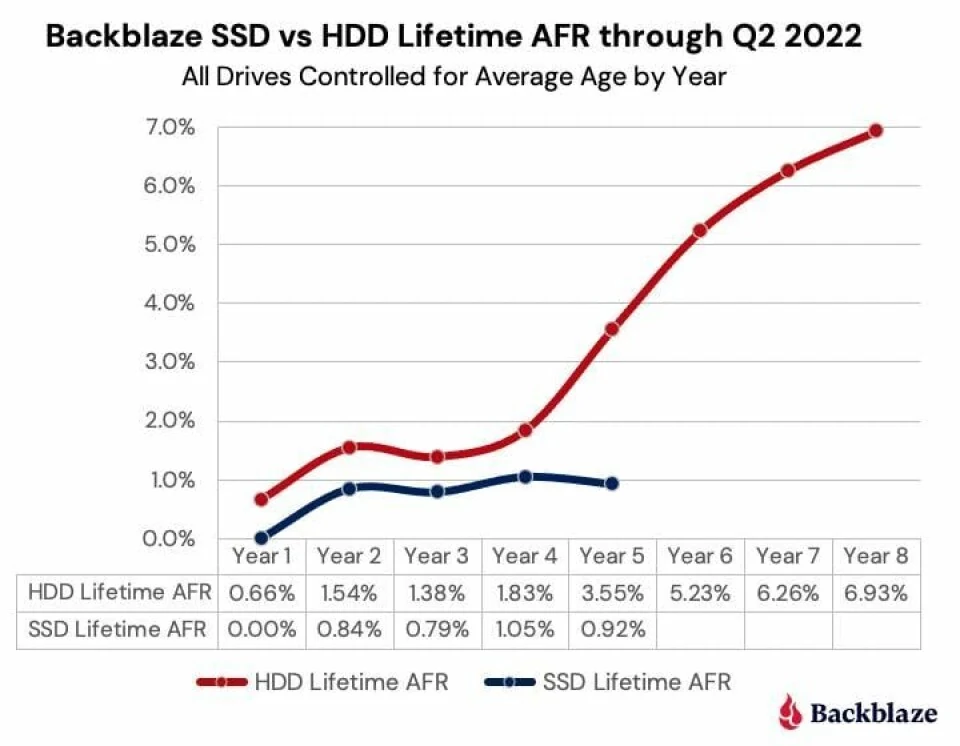
We can now say with a reasonable degree of certainty that SSDs are more reliable than hard drives, at least when it comes to their use as boot drives in our storage servers. At the same time, we are highly certain the SSD failure rate will start to rise in the future as these drives reach the end of their lifecycle, given what we know about the finite read/write endurance of NAND flash.
The per-model numbers aren’t ready to buy on
Backblaze won’t trust an annualised failure rate for an individual SSD model until it has 100 drives and 10,000 drive-days behind it in a quarter, and not one of its SSD models has cleared that bar yet. Anything you see broken out by specific drive is still too thin a sample to shop with, whatever the number looks like.
Only 3 drives in the whole set had a confidence interval tight enough — 1 percent or lower, to say much about at all, and Klein picks a Dell M.2 server drive as the best of the three. That drive sold for $468.65, which puts it well outside what anyone building a gaming rig is going to spend on a boot drive. The other two, Seagate’s ZA250CM10003 and ZA250CM10002, are ordinary consumer parts in the usual 2.5-inch form factor, which is a more useful data point for a home builder than a server-grade M.2 nobody buys to play games on.
DWPD and TBW: Reading the Endurance Numbers
A hard drive doesn’t carry a number like this; its lifespan gets put at 3 to 5 years by general reckoning and that’s about as precise as it gets. SSDs get specified instead, usually alongside a warranty that runs the same 3 to 5 years, and two figures do the actual work: DWPD, drive writes per day, is how much data you can write daily and stay inside the warranty, and TBW, total terabytes written, is the lifetime total that daily allowance adds up to. A 1TB drive rated at 1 DWPD is built to take 1TB of writes every single day for as long as the warranty runs.
The two connect through a simple formula: capacity times DWPD times 365 times the warranty in years gives you TBW, so a 1TB drive rated at 1 DWPD on a 5-year warranty works out to 1,825 TBW. That ceiling exists because of how NAND actually works, each cell can only be programmed and erased so many times before it stops holding data reliably, and DWPD and TBW are just that physical limit translated into numbers a buyer can plan around.
| Formula | TBW = Capacity (TB) DWPD 365 * Warranty (Years) |
| Capacity | 1 TB |
| DWPD | 1 |
| Warranty | 5 years |
| Resulting TBW | 1,825 TB |
A number to plan around, not a death date
A dying hard drive usually tells you something’s wrong first, with buzzing and clicking that gives you time to get your data off. An SSD gives you nothing, which is exactly why a number like TBW matters: it’s the only warning you’re going to get. But don’t mistake it for a prediction of when the drive stops working. DWPD and TBW are warranty arithmetic, not an inoperability date, and they tell you when to start thinking about a replacement, not when one becomes necessary.
Buying more endurance than your workload will ever write through is money spent on headroom you’ll never use, and Western Digital says as much itself: excessive endurance just raises the price for nothing. Buying too little costs more the other way, in early replacements and whatever data you lose when a drive hits its wall sooner than expected. The only move that makes sense either way is knowing roughly how much your own use actually writes before you pick a number off the spec sheet.
Why Storage Costs What It Does Right Now
AI data centres are eating the memory industry’s output, and consumer SSDs are what’s left on the table. Samsung, SK Hynix and Micron have all moved cleanroom space away from the NAND and DRAM that go into gaming rigs and toward HBM and high-capacity DDR5, the parts that go into AI servers instead. Data centres took 295 of the 997 exabytes of flash shipped in 2025, nearly a third of everything made, and nothing in the supply chain suggests that share shrinks soon: the shortage could run well into 2027.
Supply isn’t frozen, it’s just growing slower than demand. IDC expects DRAM supply to grow 16% year-on-year in 2026 and NAND to grow 17%, which sounds healthy until you remember how much of that growth is already spoken for. Micron has exited its own Crucial consumer business to put that capacity behind data centre parts instead, and hyperscalers have locked up much of the world’s SSD capacity under contract through 2026. Kioxia, one of the biggest flash makers on the planet, is telling its own investors to expect tight supply and demand clear through fiscal year 2027.
| Measure | Figure |
|---|---|
| DRAM supply growth, 2026 (IDC) | 16% year-on-year |
| NAND supply growth, 2026 (IDC) | 17% year-on-year |
| Data centre share of 2025 flash shipped | 295 of 997 exabytes |
| 30 TB enterprise TLC drive, Q3 2025 | USD 3,460 |
| 30 TB enterprise TLC drive, Q3 2026 | USD 22,600 |
The clearest read on how hard this market has moved sits in the enterprise tier, where a 30 TB TLC drive priced at $3,460 in the third quarter of 2025 was going for $22,600 by the third quarter of 2026, a figure Growth Market Reports pulled straight from channel pricing. Nobody’s selling you a consumer SSD at anything close to that multiple, but that drive is what the companies bidding against you for flash capacity are willing to pay for it, and that’s the pressure sitting underneath every consumer SKU on the shelf.
That pressure is already showing up on finished PCs. Lenovo, Dell, HP, Acer and ASUS have all confirmed price hikes of 15-20% to their channel partners, and IDC says the pain isn’t spread evenly: white box builders and smaller regional assemblers, the exact category a DIY gaming build falls into, take the worst of it because they have none of the supplier leverage the big OEMs do. The practical result is that bigger vendors hold share while smaller shops get squeezed out, which is a bad trade for anyone building their own machine rather than buying a prebuilt.
- IDC’s moderate downside scenario has the PC market contracting 4.9% in 2026, with average selling prices rising 4-6%
- Its pessimistic scenario deepens that to an 8.9% contraction, with average selling prices rising 6-8%
- Both sit below IDC’s official November forecast of a 2.4% year-on-year decline, and both depend on how long the memory shortage runs
One habit this shortage is wrecking: picking SATA over NVMe to save money. SATA SSD prices now sit close enough to NVMe that the gap buyers used to count on has mostly closed, which changes the math on a drive that used to be the automatic budget pick.
The price being so close to that or NVME SSDs right now is so crazy, that being said if you find a great deal on a SATA SSD, like a new 1tb for $50 absolutely take it.
It wasn’t long ago that a 1TB SATA SSD selling for 60 Euros was unremarkable, and that memory is still fresh for a lot of shoppers staring at today’s shelf prices.
I could cry seeing those prices… I can remember buying 1 TB SATA SSD for a laptop for 60 Euros…
None of this lands the same way in every country, either. The SATA to NVMe price gap varies sharply market to market, so generic buying advice written for one region can be flat wrong in another.
In Egypt, The difference between Sata and nvme is Wild , so usually we get sata SSDs for that.
Don’t wait this one out
Anyone hoping prices drift back down before their next build is betting against the evidence currently on the table. Hyperscalers have global SSD capacity locked up under contract through 2026, Kioxia’s own guidance runs through fiscal year 2027, and the broader shortage could persist well into 2027 too. Buy for the drive you need now, not the price you remember.
How Much Drive Space A Library Actually Needs
Install sizes have outgrown the drives people bought to hold them. Many modern games take well over 100GB each, which makes 1TB a reasonable minimum and not the generous number it used to be. Stack even 4 or 5 big titles on a 1TB drive and it’s full; 2TB is the more honest baseline if you keep several of them installed at once. GameCentrality’s case for going bigger rather than faster is simple: a 2TB drive holding 10 games beats a smaller, quicker drive that forces you to uninstall and redownload every time you want to switch.
Splitting A Library Between SSD And Hard Drive
SSDs cost more per gigabyte than hard drives, and that gap is the whole reason the 2-drive split exists. You put speed where you’ll actually feel it and capacity where you won’t: the SSD holds the games and applications you’re using right now, the hard drive holds backups, large media files and the games you finished months ago. Buying capacity on the fast drive for things that don’t need to be fast is money spent in the wrong place.
- Install your most demanding games on your fastest drive
- The operating system and your web browsers belong on the fast drive too, since they read and write constantly
- Any program that needs frequent read/write access earns a spot on the SSD
- Store large archives and old games on a cheap hard drive
- SSDs carry no moving parts, which makes them less prone to mechanical failure than hard drives
Free Space And Drive Slowdown
A nearly full SSD slows down, and that’s not a myth, it’s the drive running out of room to manage its own data efficiently. Overfilling it can shorten its lifespan too. Reviewers don’t agree on the exact cushion to leave: GameCentrality says keep 10 to 15 percent of the drive free, Armchair Arcade says 10 to 20 percent. Either number keeps you off the cliff; buying a drive sized so you never get near full is the easier fix than watching a percentage.
| Reviewer | Free space to leave |
|---|---|
| GameCentrality | 10 to 15 percent |
| Armchair Arcade | 10 to 20 percent |
Drivers, Firmware, Heatsinks And Slot Wiring
- Keep motherboard chipset drivers and drive firmware up to date
- Update firmware before you benchmark the drive yourself, or you’re measuring a problem the manufacturer already fixed
- Use the motherboard’s heatsink or a drive heatsink on fast NVMe models
- Some M.2 slots run at lower speeds than the drive installed in them actually supports
- Check the motherboard manual for how each M.2 slot is wired before you blame the drive
The Pagefile Is Still On Your Drive
Capacity planning isn’t only about install sizes. When RAM fills up, Windows pushes the overflow onto the pagefile, and the pagefile sits on whatever drive you’ve got. A slow drive turns that handoff into stutter you can feel, which is one more reason a hard drive doing system-drive duty hurts more than its load times alone suggest.
Checking Whether Storage Is Actually The Problem
- Open Task Manager, go to Performance, then Disk, and watch it while the stutter happens
- Disk active time pinned near 100 percent during that stutter is your first real clue
- Time a load screen with a stopwatch, then move the game to another drive and time it again
- Compare the same game’s load time on both drives
- Update the drive’s firmware, then benchmark it with CrystalDiskMark to confirm it’s actually hitting its rated speed
- Check the motherboard manual for the M.2 slot’s supported speed before you decide the drive is the problem
What All That Testing Actually Tells You To Buy
Storage is one link in a longer chain, and GameCentrality’s bench ran drives from PCIe 3.0 all the way to PCIe 5.0 to find out how much that one link actually matters. A load screen isn’t just a transfer: the CPU still has to decompress the assets once they land, the engine still has to build the scene from them, and shaders still have to compile before any of it hits the screen. A Gen5 drive can hand data over far faster than SATA ever could, but it then sits there waiting on the other three steps to catch up, which is exactly why GameCentrality found throughput gaps in synthetic benchmarks that simply never showed up once a stopwatch was running on an actual game load.
GameCentrality isn’t the only one reading the numbers this way. It points to The Verge and PC Gamer as having landed on the same diminishing-returns conclusion at the bleeding edge of PCIe speed, and puts Eurogamer in the same camp on a related point: that value beats headline speed once you’re past the SATA-to-NVMe jump. When 4 separate reviewers converge on the same reading of the same kind of data, that’s not one bench’s quirk, it’s the consensus among the people who actually ran the drives.
- Start with your motherboard, not the store page, GameCentrality says, because the board decides what any drive can actually do
- Confirm which M.2 slots run at PCIe 4.0 and which run at 5.0 before buying anything
- Check whether using a second M.2 slot steals lanes from the graphics card
- If your board tops out at PCIe 4.0, a 5.0 drive is money wasted, since the board will never let it run at its rated speed
- Size the drive for your library first, and only chase peak speed after that’s settled
- Prioritise a real DRAM cache and a reputable controller over the peak sequential number on the box
- Sustained and random performance, not the peak figure, is what you actually feel during streaming and fast travel
GameCentrality’s verdict, after all of that, is blunt: buy generous, well-cooled Gen4 capacity and spend whatever you save elsewhere in the build. Chase Gen5 only if your library genuinely leans on DirectStorage-heavy releases, and only if you can keep the drive cool enough that it doesn’t throttle under its own heat. The bottleneck guide lands on that exact same Gen4 value pick for anyone buying right now, which is two different angles on the same data arriving at the same answer.
The Blind Spot In Your Bottleneck Calculator
Every bottleneck calculator weighs your CPU against your GPU and stops there; it was never built to look at the drive, so it never will. If your games stutter or take forever to load while that calculator insists everything’s fine, storage is the one component it isn’t checking, and the one you should check yourself.
GameCentrality reckons the cheaper lever is sitting in your settings menu and your graphics driver, not in your next PCIe generation, because storage is only half of what decides how smooth a load feels and how steady your frame pacing is. Chasing a drive upgrade to fix either one is chasing the wrong half.